How to Add a Chatbot to Your Website Without Coding (2026 Guide)
Most businesses lose customers simply because no one answered their question fast enough. In this guide, we show you exactly how to add a fully functional AI chatbot to your website in under 10 minutes — no coding, no developer, no expensive setup. Just sign up, upload your content, and go live.
How to Add a Chatbot to Your Website Without Coding (2026 Guide)
Introduction
Your website gets visitors every day — but how many of them are leaving because no one answered their question?
Most businesses lose potential customers simply because they couldn't respond fast enough. Visitors ask about pricing, availability, or features — and when there's no instant reply, they leave and go to a competitor.
The good news? You don't need a developer, a big budget, or any technical knowledge to fix this. With modern AI chatbot builders like Glanceia, you can add a fully functional, intelligent chatbot to your website in under 10 minutes — no coding required.
In this guide, we'll walk you through exactly how to do it.
Why Every Website Needs a Chatbot in 2026
Before we dive into the how, let's talk about the why.
Customer expectations have changed dramatically. People now expect instant responses — 24 hours a day, 7 days a week. A static FAQ page or a contact form that takes 24 hours to respond just doesn't cut it anymore.
Here's what a chatbot does for your business:
Answers questions instantly — no waiting, no frustration
Works 24/7 — even when your team is offline
Captures leads automatically — collects name, email, and phone during the conversation
Reduces support workload — automates 80% of repetitive questions
Increases conversions — guides visitors toward booking, buying, or signing up
Whether you run an e-commerce store, a travel agency, a SaaS product, or a local service business — a chatbot pays for itself very quickly.
What You Need Before You Start
The traditional way of adding a chatbot to a website used to involve:
Hiring a developer
Writing complex API integrations
Weeks of training and testing
Expensive monthly subscriptions
Today, none of that is necessary.
All you need is:
A website (WordPress, Shopify, Wix, Webflow, or any other platform)
An account on a no-code chatbot builder like Glanceia
10 minutes of your time
That's it. Let's get into it.
Step-by-Step: How to Add a Chatbot to Your Website Without Coding
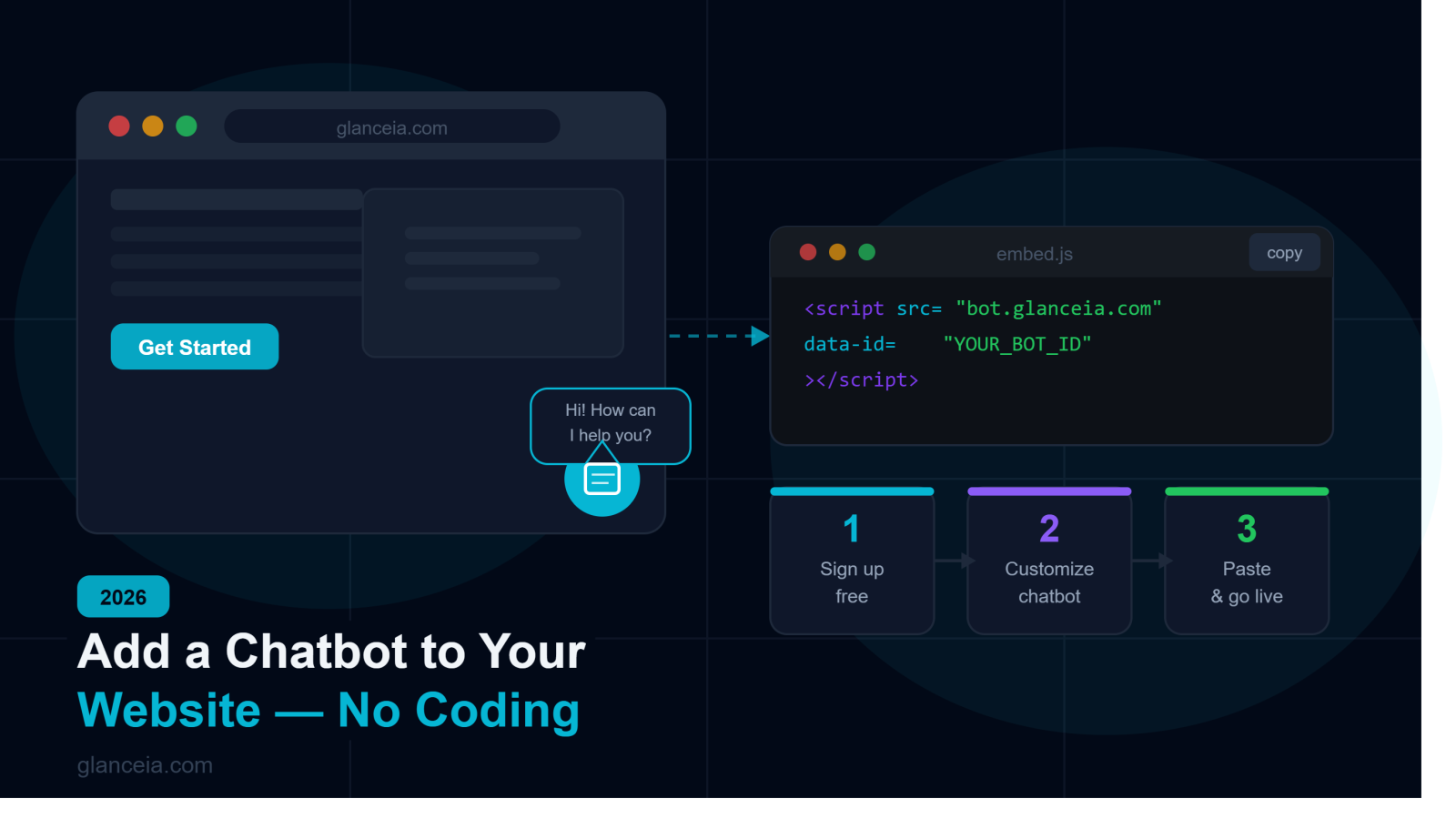
Step 1: Sign Up for Glanceia (Free)
Go to glanceia.com and create a free account. You can sign up with Google or your email address — no credit card required.
The free plan lets you create 1 chatbot and start testing it immediately.
Step 2: Upload Your Business Data
This is where the magic happens. Instead of manually programming hundreds of responses, Glanceia lets you train the chatbot on your own content.
You can upload:
PDF files (product catalogs, service guides, pricing sheets)
Word documents (.docx)
FAQ documents
Plain text files
Once uploaded, the AI reads and understands your content. From that point on, every answer the chatbot gives is based on your specific business information — not generic responses.
For example, if you run a travel agency and upload your tour package PDFs, the chatbot will be able to answer questions like "What's included in the Bali package?" or "Do you offer visa assistance?" — accurately and instantly.
Step 3: Customize the Chatbot
Now make it yours. From the Glanceia dashboard, you can customize:
Colors — match your brand's hex codes exactly
Avatar — upload your logo or choose an icon
Launcher position — bottom right, bottom left, etc.
Welcome message — write a custom first message that greets visitors
Tone of voice — professional, friendly, casual
This step ensures the chatbot feels like a natural part of your website, not a third-party widget that looks out of place.
Step 4: Copy and Paste One Line of Code
Once your chatbot is configured, Glanceia gives you a single embed script. It looks something like this:
<script src="https://bot.glanceia.com/v1.js" data-id="YOUR_BOT_ID"></script>
Copy this snippet and paste it into your website before the closing </body> tag.
For WordPress: Go to Appearance → Theme Editor → footer.php and paste the script
For Shopify: Go to Online Store → Themes → Edit Code → theme.liquid
For Wix: Use the Wix HTML Embed widget
For Webflow: Go to Project Settings → Custom Code → Footer Code
That's it. Your chatbot is now live on your website.
Step 5: Test Your Chatbot
Before you go live, open your website and test the chatbot yourself. Ask it a few questions your customers typically ask. Check that:
The answers are accurate and on-brand
The welcome message appears correctly
The colors and design match your site
It captures lead information when asked
If something's off, go back to the Glanceia dashboard and make adjustments. It takes seconds to update.
Pro Tips to Get the Most Out of Your Website Chatbot
Use a Strong Welcome Message
The first message your chatbot sends sets the tone for the entire conversation. Instead of a generic "Hi, how can I help?", write something specific to your business.
For example:
"Welcome to [Your Agency]! Looking for tour packages or need help with visa requirements?"
"Hey there! Ask me anything about our products, pricing, or delivery."
A specific welcome message shows visitors you understand their needs — and it drives more engagement.
Upload Updated Content Regularly
Your chatbot is only as good as the data it's trained on. Whenever you update your pricing, add new products, or change your services — upload the new documents to Glanceia so the chatbot stays current.
Monitor Your Analytics
Glanceia's built-in analytics dashboard shows you:
What questions visitors are asking most
Where conversations are dropping off
Which topics are generating the most interest
Use this data to improve your content, update your FAQs, and spot opportunities you might be missing.
Enable Lead Capture
Make sure your chatbot is set up to collect visitor information during the conversation. Glanceia can automatically ask for name, email, and phone number — so even if a visitor doesn't convert immediately, you have their details for follow-up.
Which Businesses Benefit Most from a No-Code Chatbot?
Honestly, almost any business with a website can benefit — but some industries see especially strong results:
Travel Agencies — Answer package, pricing, and visa questions 24/7. Qualify leads before your sales team follows up.
E-commerce Stores — Handle "Where's my order?", "What's your return policy?", and product questions automatically.
SaaS & Tech Products — Onboard new users, answer feature questions, and reduce support ticket volume.
Real Estate — Answer property inquiries, collect leads, and schedule viewings automatically.
Healthcare & Clinics — Answer appointment and service questions without tying up your front desk.
Education — Help prospective students get information about courses, fees, and admissions instantly.
Glanceia vs. Traditional Chatbot Setup
Traditional Setup Glanceia Setup time Weeks Under 10 minutes Coding required Yes No Training the bot Manual rule-building Upload your documents Cost High (dev + tools) Free to start Customization Limited unless coded Full visual customization Languages Often English only 95+ languages
The difference isn't subtle. No-code chatbot builders like Glanceia have made what used to be a complex technical project into something any business owner can do themselves, on any platform, in minutes.
Frequently Asked Questions
Do I need to know how to code to use Glanceia?
No. The entire setup process is visual and code-free. The only "technical" step is pasting one line of HTML into your site, which takes about 30 seconds.
Will the chatbot give wrong answers?
Glanceia trains the chatbot exclusively on the data you upload. It doesn't pull information from the internet or give generic answers — so as long as your uploaded documents are accurate, the responses will be too.
Can I use Glanceia on multiple websites?
The free plan supports 1 bot. The Pro plan (starting at $9/month) supports up to 4 bots — useful if you have multiple sites or want separate bots for different use cases.
What if a visitor asks something the bot doesn't know?
You can configure a fallback response that directs visitors to contact your team directly, or collects their information so you can follow up.
Is my data secure?
Yes. Glanceia gives every business a fully isolated data environment. Your documents and customer conversations are never shared with or visible to other companies using the platform.
Conclusion
Adding a chatbot to your website used to require a developer, weeks of work, and thousands of dollars. In 2026, it takes 10 minutes and costs nothing to get started.
With a tool like Glanceia, you can:
Train an AI chatbot on your real business data
Customize it to match your brand completely
Deploy it to any website with one line of code
Start capturing leads and answering questions the same day
The visitors are already coming to your website. The question is: are you giving them a reason to stay and convert?
Try Glanceia free today → No credit card required.
Published by the Glanceia Team | glanceia.com