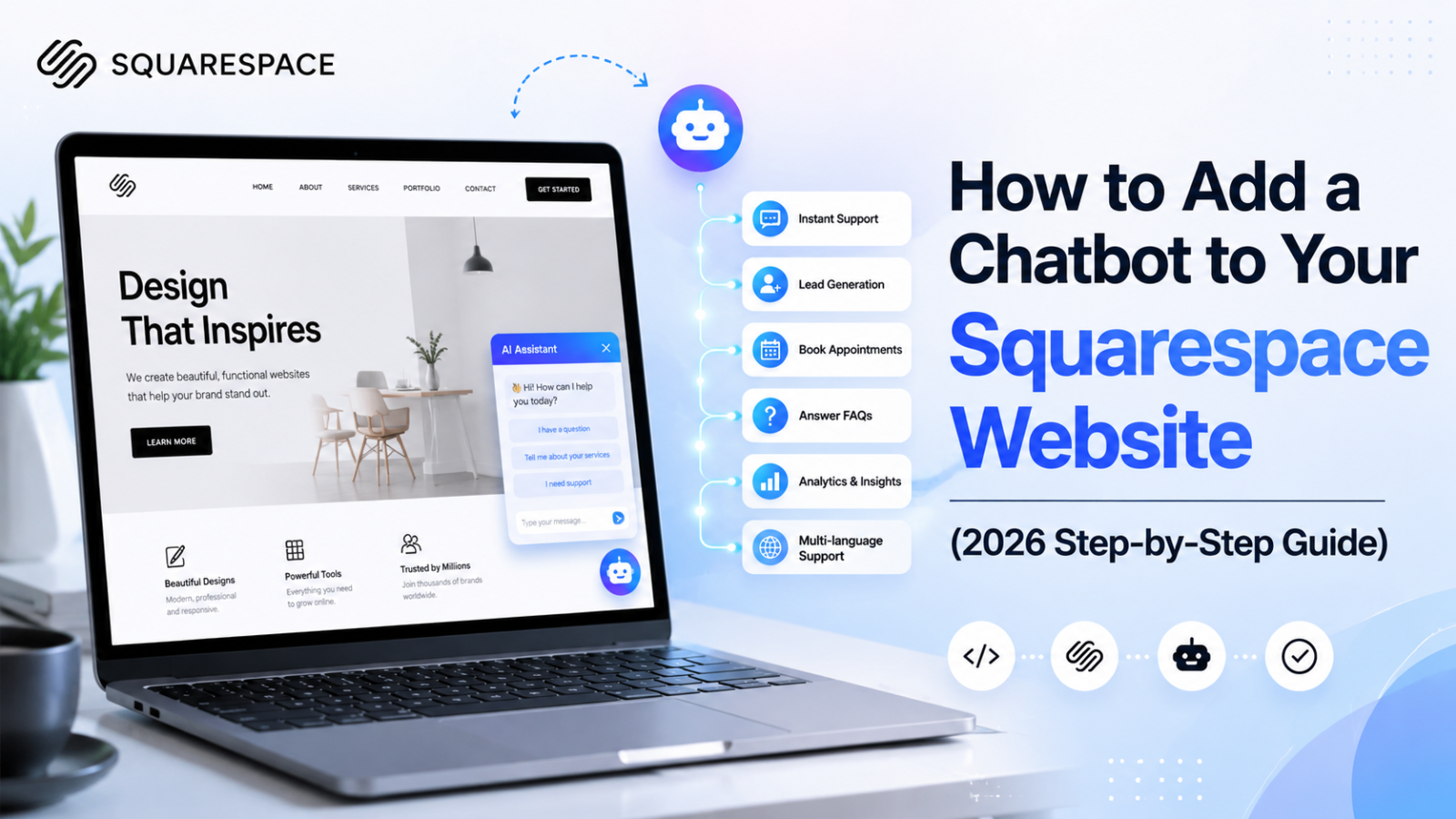
How to Add a Chatbot to Your Squarespace Website (2026 Step-by-Step Guide)
Learn how to add an AI chatbot to your Squarespace website in minutes — no coding needed. Answer visitor questions, capture leads, and support visitors 24/7 with Glanceia.
Introduction
Squarespace builds some of the most visually impressive websites on the internet. Its templates are polished, its editor is intuitive, and the finished result looks professionally designed even when built entirely without a developer.
But even the most beautiful Squarespace website has the same problem every other website has: most visitors arrive with questions and leave without answers. They browse your services page, pause on your pricing, have one specific question they need answered before they will take the next step — and find nobody there to answer it.
A chatbot fixes this by giving every visitor an instant, intelligent way to get answers on every page of your site — at any hour, including the evenings and weekends when Squarespace traffic peaks for most service businesses.
This guide walks you through exactly how to add a chatbot to your Squarespace website in minutes using Glanceia — with no coding, no developer, and no changes to your Squarespace template or design.
Why Squarespace Sites Specifically Benefit From a Chatbot
Squarespace attracts a specific type of business. Photographers, designers, consultants, coaches, architects, interior designers, health and wellness practitioners, restaurants, boutique hotels, event planners, and creative agencies — businesses for whom visual presentation is central to how they sell.
What these businesses share is that their potential clients arrive on the website already visually engaged — the portfolio, the photography, the layout has done its job. What kills the conversion is the moment when an interested visitor has a question they cannot immediately answer:
What is your availability like for my project timeline?
Do you take on clients in my city?
What does your pricing look like for a brand of my size?
Is this service right for someone at my stage?
On a Squarespace site without a chatbot, these questions go unanswered and the visitor leaves to try a competitor. On a Squarespace site with Glanceia running, the question gets answered instantly — and the visitor becomes a lead.
Beyond answering questions, a Squarespace chatbot also:
Captures visitor email addresses and qualifying information automatically
Provides professional 24/7 responsiveness that builds trust with potential clients
Reduces the enquiry-to-first-conversation friction that slows down your client acquisition
Gives you data on what potential clients are actually asking — invaluable for improving your website copy and service positioning
Does Squarespace Have a Built-In Chatbot?
No. Squarespace does not include a native AI chatbot feature in any of its plans. It has a basic contact form and a member area for logged-in users, but no chatbot widget, no live chat, and no AI conversation capability built in.
To add a chatbot to a Squarespace website, you need a third-party tool like Glanceia that provides an embed script you add to Squarespace's code injection feature.
This is simpler than it sounds. Squarespace's code injection feature lets you add custom scripts to every page of your site through a single settings field — no template editing, no developer required. The entire process takes under 5 minutes once your chatbot is configured.
What You Need Before You Start
A Squarespace website on the Business plan or above (Personal plan does not include code injection)
A free Glanceia account — no credit card required
Your business content — a FAQ document, service descriptions, pricing, policies
20 to 30 minutes
Important note on Squarespace plans: Code injection is only available on Squarespace's Business plan and above. If you are on the Personal plan, you will need to upgrade before this method works. Check your current plan under Account → Billing → Subscriptions in your Squarespace dashboard.
Step-by-Step: How to Add a Chatbot to Squarespace
Step 1: Create Your Free Glanceia Account
Go to Glanceia and sign up for a free account. The signup takes about 60 seconds and requires no credit card.
Once inside the dashboard, click to create a new chatbot. Give it a name — your business name, a product name, or simply "Support" — and set your preferred language and tone.
Step 2: Upload Your Business Content
This is the most important step in the entire process. The content you upload is what the AI learns from — it determines how specifically and accurately the chatbot answers your visitors' questions.
For Squarespace businesses, the most valuable content to upload typically includes:
Service or Package Descriptions What you offer, what is included in each package or service, pricing ranges, timelines, and the process of working with you. This is the content that answers the questions most potential clients have before deciding to reach out.
Your FAQ Document Write out the 15 to 25 questions your enquiry emails and discovery calls most often cover. Answer each one completely and specifically — not with vague deflections but with the real answer a client needs.
A strong FAQ answer looks like: "Our brand photography packages start at ₹45,000 for a half-day shoot, which includes 40 edited images, two outfit changes, and a private online gallery delivered within 7 business days."
A weak FAQ answer looks like: "Our pricing varies — please contact us for a quote."
The chatbot learns from what you write. Specific content produces specific answers. Vague content produces vague answers.
Your Policies Cancellation policy, rescheduling terms, refund policy, booking deposit requirements, turnaround times — anything a client might want to confirm before committing.
Your Contact and Availability Information Business hours, how to book a consultation, how to reach a human for urgent matters, your location or service area.
Upload your content as a PDF, paste text directly into the Glanceia training section, or provide your existing FAQ page URL and let Glanceia read it automatically.
Step 3: Customise the Widget to Match Your Squarespace Design
Squarespace sites are visually distinctive. Your chatbot widget should feel like a designed element of your site — not a generic third-party tool that clashes with your aesthetic.
In your Glanceia dashboard, customise:
Widget Color Open your Squarespace site in another browser tab. Identify your primary brand color from your style guide or from an element like your header, button, or link color. Paste its exact hex code into the Glanceia color setting. A matching color makes the widget feel integrated rather than bolted on.
Welcome Message This is the first thing visitors see when the chat window opens. Write something that immediately communicates what the chatbot can help with — specific to your Squarespace business type.
For a photography studio: "Hi! Questions about availability, packages, or what to expect from a shoot? I can answer right now."
For a design agency: "Hello! Curious about our process, timelines, or pricing? Ask me anything — I can help."
For a health practitioner: "Hi! Have questions about our services, appointment booking, or what to expect? I'm here to help."
For a restaurant: "Hi! Want to know about our menu, hours, reservations, or private events? Just ask!"
Chatbot Name Use your business name or a clean label like "Ask Us" or "Support." Avoid overly robotic-sounding names — your Squarespace audience expects a premium experience.
Position Keep this at bottom right. It is where visitors naturally look for a chat option and where click-through rates are consistently highest across all website types.
Step 4: Get Your Embed Script
Navigate to the deploy or embed section of your Glanceia dashboard. Copy your unique embed script — a single line of JavaScript that looks like this:
html
<script src="https://cdn.glanceia.com/widget.js" data-id="YOUR_CHATBOT_ID" async></script>Copy this line to your clipboard. This is the only code you need.
Step 5: Add the Script to Squarespace via Code Injection
Squarespace's Code Injection feature lets you add scripts across your entire site in one step — no page-by-page editing required.
Here is exactly how to find and use it:
Log into your Squarespace account and go to your website dashboard
In the left sidebar, click Settings
Scroll down and click Advanced
Click Code Injection
You will see four code areas: Header, Footer, Lock Page, and Order Confirmation Page
Click inside the Footer code area
Paste your Glanceia embed script into the Footer field
Click Save in the top left corner
That is it. The script is now applied to every page of your Squarespace website.
Step 6: Publish and Verify
Squarespace applies code injection changes to your live site immediately after saving — you do not need to separately publish. However, it can take a few minutes for the changes to propagate.
Wait two to three minutes, then open your Squarespace website in a private or incognito browser window. You should see the Glanceia chat widget appearing in the bottom right corner of the page.
Click the widget to open it. Ask it a question based on the content you uploaded in Step 2. Verify that:
The answer is accurate and specific — drawn from your actual content
The widget color matches your Squarespace design
The welcome message displays correctly
The widget is visible and works on mobile — open your site on a phone and test the full experience
If the widget is not appearing after five minutes, check that:
You pasted the script in the Footer section, not the Header section
You clicked Save after pasting — the button is in the top left of the Code Injection page
You are viewing the live site, not a preview — sometimes previews do not execute injected scripts
Adding a Chatbot to Specific Squarespace Pages Only
The Code Injection method above adds the chatbot to every page of your Squarespace site. This is recommended for most businesses — visitors can have a question on any page, and the chatbot should be available everywhere.
However, if you want the chatbot to appear only on specific pages — for example, only on your pricing page or your contact page — Squarespace's Page Settings allow page-level code injection:
Open the page you want the chatbot on in your Squarespace editor
Click the gear icon next to the page name in the Pages panel to open Page Settings
Click the Advanced tab within Page Settings
Paste your Glanceia script in the Page Header Code Injection field
Click Save
Repeat for any other pages where you want the chatbot to appear. The chatbot will only show on those specific pages, not site-wide.
Squarespace-Specific Chatbot Best Practices
Squarespace businesses tend to have high-quality visual brands and clientele who expect a polished experience. Apply these best practices to ensure the chatbot matches that standard:
Make the Widget Color Precise Squarespace sites typically have carefully considered color palettes. Use the exact hex code from your Squarespace style guide rather than an approximate color match. The difference between a brand color and a close-but-not-quite shade is immediately visible on a well-designed site.
Write a Welcome Message That Matches Your Brand Voice If your Squarespace site has a specific voice — warm and personal, minimal and professional, playful and creative — your chatbot welcome message should match it. A brand photographer with a warm, personal website should not have a chatbot that opens with a corporate greeting.
Train the Chatbot on Your Portfolio or Case Studies For creative businesses, potential clients often ask about past projects — industries you have worked with, examples of your style, types of clients you typically serve. Include summaries of relevant case studies or portfolio pieces in your training content so the chatbot can speak to your experience.
Ensure Mobile Compatibility Squarespace sites are typically well-optimised for mobile, and Squarespace traffic skews heavily toward mobile users. Test the chatbot widget thoroughly on a real phone before considering the setup complete. The widget should be clearly visible without obstructing content, easy to tap, and comfortable to use through a full conversation on a small screen.
Set Up an Escalation Path for High-Value Enquiries For high-ticket services — premium photography, architecture projects, luxury hospitality — some potential clients will want to speak to a human before committing to an initial consultation. Configure the chatbot to provide a direct link to your booking page, your email, or a calendar link so high-intent visitors can immediately take the next step toward speaking with you.
What the Chatbot Handles vs. What Your Squarespace Contact Form Handles
A common question from Squarespace businesses is whether a chatbot replaces their contact form. The short answer is: they serve different purposes and work better together than either does alone.
Your Squarespace contact form is best for:
Formal project enquiries where a client wants to send a structured brief
Visitors who prefer asynchronous communication and are comfortable waiting for a reply
Long-form enquiries with multiple specific questions that take time to type
Your chatbot is best for:
Quick questions that have a specific answer from your content
Visitors who want an instant answer before deciding to submit a formal enquiry
After-hours visitors who would not receive a form reply until the next business day
Passive lead capture from visitors who would not submit a contact form but will share an email in a conversation
The ideal setup is both: the chatbot handles the immediate conversation and captures the lead, while your contact form remains available for clients who prefer to send a structured enquiry. Together, they capture a higher proportion of the interested visitors your Squarespace site generates.
How to Update the Chatbot Without Touching Squarespace
One of the most practical advantages of the embed-script approach is that once the script is in your Squarespace Code Injection footer, you never need to touch it again. All updates — new content, refined answers, updated pricing, new services — happen in your Glanceia dashboard and take effect immediately on your Squarespace site without any changes to the script.
This means:
You update your service prices in January — update the Glanceia training content, done
You launch a new package in March — upload the new package description to Glanceia, done
You change your cancellation policy — update the FAQ in Glanceia, done
The chatbot on your Squarespace site is always running the latest version of your content, without any developer involvement or Squarespace edits after the initial setup.
Common Squarespace Chatbot Issues and How to Fix Them
The widget is not appearing on my site Check three things in order: confirm the script is in the Footer (not Header) of the Code Injection section, confirm you clicked Save, and confirm you are viewing the live site rather than a Squarespace preview. Squarespace previews do not always execute injected scripts.
The widget appears but the color does not match my site Go back to your Glanceia dashboard and update the widget color using your exact hex code. Changes to widget appearance update on your live site immediately.
The chatbot gives inaccurate answers This is a content issue, not a technical one. The chatbot answers from what you uploaded during setup. If an answer is wrong or incomplete, the relevant content in your Glanceia knowledge base needs to be corrected or supplemented. Update the training content and the chatbot improves immediately.
The widget looks fine on desktop but is hard to use on mobile Check the widget position setting in Glanceia. On mobile, certain positions can obstruct navigation elements or content. Bottom right is the safest position for mobile compatibility across all Squarespace templates.
I am on Squarespace Personal plan and cannot find Code Injection Code Injection is only available on Squarespace Business plan and above. The Personal plan does not include this feature. You will need to upgrade your Squarespace plan to add a chatbot via this method.
FAQ — Chatbot for Squarespace
Does Squarespace have a built-in chatbot? No. Squarespace does not include a native AI chatbot in any of its plans. To add a chatbot, you need a third-party tool like Glanceia and add it via Squarespace's Code Injection feature.
Which Squarespace plans support code injection for a chatbot? Code Injection is available on Squarespace's Business plan and above. The Personal plan does not support custom code injection. If you are on the Personal plan and want to add a chatbot, you will need to upgrade.
Will the chatbot slow down my Squarespace site? No. Glanceia's script loads asynchronously — meaning it does not block your Squarespace page content from loading and will not affect your site's speed scores or Core Web Vitals.
Can I control which pages the chatbot appears on in Squarespace? Yes. Use the global Code Injection footer to add it site-wide, or use individual page's Advanced settings for page-specific deployment. Both methods are covered in this guide.
Does the chatbot interfere with Squarespace's contact forms? No. The chatbot runs independently alongside any forms you have on your Squarespace site. They complement rather than replace each other — the chatbot handles instant questions and lead capture, while the contact form handles formal project enquiries.
What happens to the chatbot if I change my Squarespace template? Because the chatbot is added through Code Injection rather than embedded in a specific template, it carries over when you switch Squarespace templates. You may need to verify the widget color still matches your new template's branding and adjust the hex code in Glanceia if needed.
Can I remove the chatbot later if I change my mind? Yes. Go back to Settings → Advanced → Code Injection in Squarespace, delete the Glanceia script from the Footer field, and save. The chatbot disappears from your site immediately.
Is the Glanceia free plan enough for a Squarespace small business site? Yes — the free plan is a fully functional AI chatbot with no time limit and no credit card required. It is suitable for small business Squarespace sites with moderate traffic. The paid plan at $9 per month provides higher conversation volume when your traffic grows.
Final Thoughts
Adding a chatbot to your Squarespace website turns your beautifully designed site into a 24/7 sales and support machine. Every visitor — whether they arrive at noon or midnight — gets an instant, intelligent response to their question. Every potential client who was interested but uncertain gets the specific answer that moves them forward. Every lead gets captured automatically, even the ones who would never submit a contact form.
The setup takes under 30 minutes. The impact starts from day one.
Your Squarespace site already does the visual work of impressing visitors. A chatbot does the conversational work of converting them.
Ready to add a chatbot to your Squarespace website today? Try Glanceia free — no credit card needed →
Published by Laxman- Team Glanceia