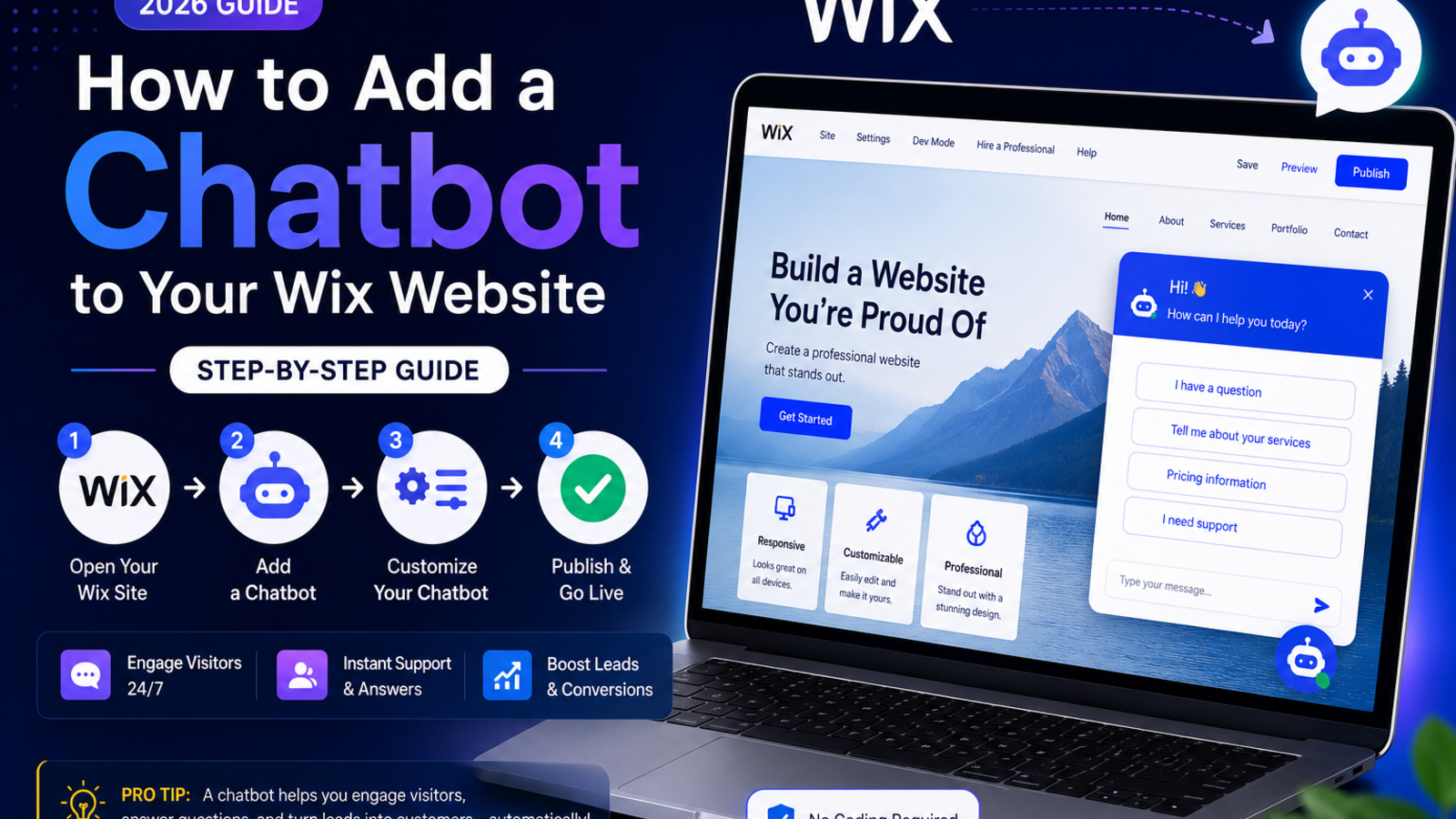
How to Add a Chatbot to Your Wix Website (2026 Step-by-Step Guide)
Learn how to add an AI chatbot to your Wix website in minutes — no coding needed. Answer questions, capture leads, and support visitors 24/7 with Glanceia.
Introduction
Wix makes it easy to build a beautiful website — but once visitors land on it, most of them leave without doing anything. No booking, no inquiry, no sign-up. Just a bounce.
The reason is almost always the same: they had a question, couldn't find the answer fast enough, and moved on to the next option in their Google search results.
Adding an AI chatbot to your Wix site fixes this exact problem. It gives every visitor an instant way to ask questions and get real answers — about your services, pricing, availability, or anything else specific to your business — without them having to hunt through pages or wait for a reply.
This guide walks you through exactly how to add a chatbot to your Wix website in minutes using Glanceia, with zero coding and zero developer cost.
Why a Chatbot Makes Sense for Wix Websites
Wix is popular with small businesses, freelancers, service providers, and local shops — all of whom share the same challenge: they're too busy to respond to every inquiry immediately, but every unanswered inquiry is potential revenue walking out the door.
A chatbot trained on your business information handles the front line 24/7:
A visitor asks about your pricing at 10 PM — the chatbot answers instantly
Someone wants to know if you're available on a specific date — the chatbot tells them and captures their contact details
A potential customer has a question about what's included in your service package — the chatbot explains it and nudges them toward booking
A first-time visitor isn't sure if you're the right fit — the chatbot asks a couple of qualifying questions and points them to the right page
None of this requires you to be online. None of it requires a developer. And none of it requires the visitor to hunt through your site hoping to find the answer themselves.
What You Will Need
A Wix website (free or paid plan — see the note below about which plans support custom code)
A free Glanceia account
Access to your Wix dashboard
About 5 minutes
Important note on Wix plans: Adding a custom embed script to Wix requires the Core plan or above (previously called the Combo plan). If you're on Wix's free plan, you'll need to upgrade before this method works. If you're unsure which plan you're on, check under Settings → Billing & Subscriptions in your Wix dashboard.
Step-by-Step: Adding a Chatbot to Wix
Step 1: Set Up Your Glanceia Account
Head to Glanceia and create a free account. The onboarding takes about 2 minutes and walks you through creating your first chatbot.
Step 2: Train the Chatbot on Your Business Content
This is the step that separates a useful chatbot from a generic one. Upload the actual information about your business so the chatbot can answer questions accurately:
Your FAQ page — paste the text or upload it as a PDF
Services or packages — what you offer, what's included, pricing
Business hours and location — especially important for local businesses
Booking or contact process — how someone actually gets in touch or books with you
Any policies — cancellations, refunds, terms
The more relevant content you upload, the better and more specific the chatbot's answers will be. For a deeper guide on this step, check out our post on how to train a chatbot on your own data.
Step 3: Customize the Widget Appearance
Match the chatbot widget to your Wix site's branding — choose a color that fits your palette, set a name for the chatbot if you want to give it a branded identity, and write a welcome message that suits your business tone.
Examples of good welcome messages for different Wix site types:
Service business: "Hi! Got questions about our services or pricing? I'm here to help."
Local shop: "Welcome! Ask me anything about our products, hours, or location."
Freelancer portfolio: "Hi there! Want to know more about my work or availability? Just ask."
Events or bookings: "Looking to book or have a question before you do? I can help right now."
Step 4: Copy Your Embed Script
Once your chatbot is configured, Glanceia gives you a short embed script — a single line of JavaScript. Copy it and keep it ready for the next step.
Step 5: Add the Script to Your Wix Site
Wix has a built-in tool called Custom Code (previously called Velo) that lets you add scripts site-wide without touching any theme files. Here's exactly how to use it:
Log into your Wix dashboard
Click on your site, then go to Settings
In the left menu, scroll down and click Custom Code
Click + Add Custom Code (top right corner)
Paste your Glanceia embed script into the code box
Give it a name like Glanceia Chatbot so you can identify it later
Under Add Code to Pages, select All Pages
Under Place Code in, select Body - end
Click Apply
Publish your site — the chatbot won't go live until you hit Publish
That's it. Your chatbot will now appear on every page of your Wix website.
Step 6: Test It Live
After publishing, open your site in an incognito window and look for the chatbot widget in the bottom corner. Test it with a few real questions a visitor might ask — about your pricing, services, or availability — and make sure the answers are accurate and complete.
If you want to adjust the answers, go back to your Glanceia dashboard and update the content. Changes go live without needing to touch your Wix site again.
Works With All Wix Site Types
Because Glanceia is added via the Custom Code section and not as a Wix app, it works cleanly across every type of Wix site:
Service business sites — answer questions about packages and book consultations
Wix Stores (ecommerce) — answer product questions and capture shoppers who are on the fence
Restaurant sites — answer questions about the menu, hours, reservations, and delivery
Portfolio sites — answer questions about availability, rates, and past work
Booking sites — pre-qualify potential clients before they reach the booking form
Local business sites — answer location, hours, and service area questions instantly
Real Example: How This Helps a Local Business on Wix
Imagine a salon running their booking website on Wix. Most visitors land on the site, check the services page, and then leave without booking — often because they had a quick question (pricing for a specific treatment, availability this weekend, whether a certain stylist is available) and didn't want to call during business hours to find out.
With a chatbot in place, that visitor gets an instant answer to their question at any hour, with a direct link to the booking page. The salon doesn't need to hire a receptionist to handle those after-hours inquiries — the chatbot does it automatically, capturing both the inquiry and the contact details.
Common Mistakes to Avoid
Not publishing after adding the code — Wix won't make changes live until you hit the Publish button. If your chatbot isn't showing up, this is almost always the reason.
Using the free Wix plan — Custom Code is not available on Wix's free plan. You'll need to be on the Core plan or above.
Uploading thin or vague content — A chatbot trained on a three-line FAQ will give three-line-FAQ-quality answers. The more detailed your uploaded content, the better the chatbot performs.
Not testing after going live — Always test from an incognito window after publishing to confirm the widget is showing up and answering correctly.
Forgetting to update after business changes — If your pricing, services, or policies change, update the content in your Glanceia dashboard too.
FAQ
Does adding a chatbot to Wix slow down my site? No. The Glanceia script loads asynchronously, meaning it doesn't block your site's content from loading and won't affect your Wix site's speed or performance scores.
Can I choose which pages the chatbot appears on in Wix? Yes. In the Custom Code settings, instead of selecting "All Pages" you can choose specific pages or use Wix's page-level code injection to limit the chatbot to certain pages only — for example, just your pricing or contact page.
Will this conflict with the Wix Chat app? Glanceia runs independently as a script, so there's no technical conflict with Wix Chat or any other Wix app. If you're replacing Wix Chat with Glanceia, simply remove or disable the Wix Chat app from your dashboard after setting up Glanceia.
Can I use this on a Wix ecommerce store? Yes — the chatbot will appear on product pages, the cart, and throughout your Wix store, where it can answer product questions and help convert hesitant shoppers.
What if I want to remove the chatbot later? Go back to Settings → Custom Code in your Wix dashboard, find the Glanceia entry, delete it, and republish your site. The widget disappears immediately.
Does this work if I switch Wix templates? Yes — because the chatbot is added through Custom Code and not embedded into a specific template, it carries over even if you switch to a different Wix template. You may just need to republish after switching.
Final Thoughts
Wix makes it easy to build a great-looking website. A chatbot makes it easy to actually convert the visitors who land on it. Together, you get a site that looks professional, answers questions 24/7, captures leads automatically, and turns browsers into paying customers — without adding to your workload.
Ready to go live on your Wix site today? Try Glanceia free →
Published by Laxman- Team Glanceia