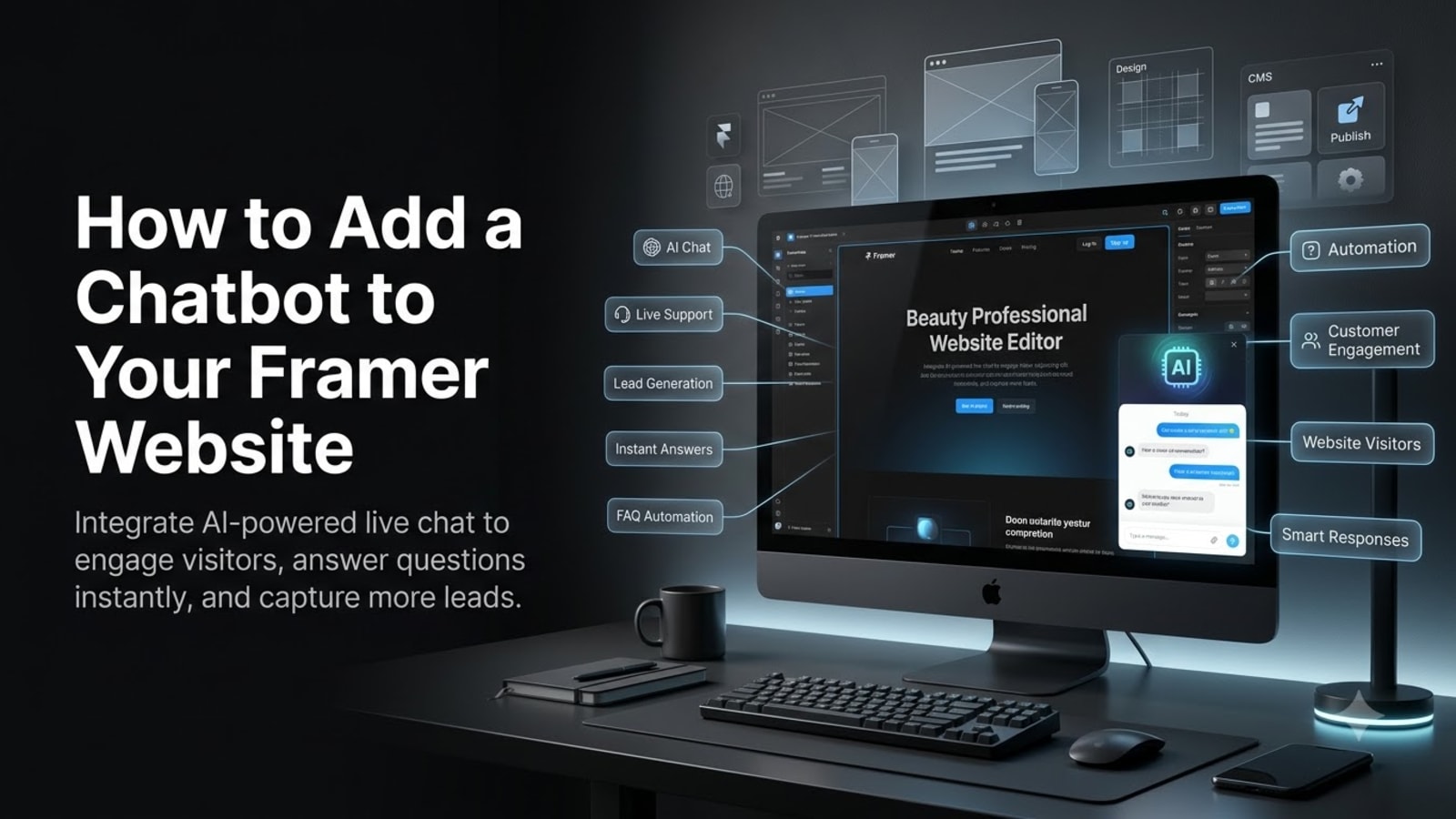
How to Add a Chatbot to Your Framer Website
Learn how to add an AI chatbot to your Framer website in minutes — no coding needed. Answer visitor questions, capture leads, and support visitors 24/7 with Glanceia.
Introduction
Framer has become the go-to website builder for designers and product teams who want full creative control over their web presence without writing code from scratch. Its design-first approach, smooth animations, and clean output make it a favourite for startups, SaaS products, agencies, and design-forward brands who want a website that genuinely stands out.
But even the most visually impressive Framer website shares the same challenge as every other website: most visitors arrive with questions and leave without answers. They browse your product pages, pause on your pricing, and have one specific question that determines whether they become a lead or a bounce. Without an instant way to get that answer, they leave.
A chatbot solves this. It sits on every page of your Framer website, engages visitors in real conversation, answers their questions accurately from your specific business content, and captures their contact details — all automatically, at any hour, without your team needing to be present.
This guide shows you exactly how to add an AI chatbot to a Framer website using Glanceia — step by step, in under 30 minutes, with no coding required.
Does Framer Have a Built-In Chatbot?
No. Framer does not include a native AI chatbot in any of its plans. It has a form component for collecting visitor information, but no live chat widget, no AI conversation capability, and no chatbot feature built into the platform.
To add a chatbot to a Framer website, you need a third-party tool that provides an embed script — a short piece of JavaScript you add through Framer's Custom Code feature. This is the standard method for adding third-party widgets to Framer and takes under five minutes once your chatbot is configured.
Why Framer Websites Specifically Benefit From a Chatbot
Framer attracts a specific type of business and audience. Startups launching their first product. SaaS companies running their marketing site. Design agencies showcasing their portfolio. Tech founders building credibility before their product launch. Creative brands presenting a premium visual identity.
What these businesses have in common is that their website visitors arrive with high intent but specific questions that the site alone cannot always answer immediately:
A startup visitor wants to know if the product integrates with their existing tools before they sign up for a trial. A SaaS visitor wants to understand the pricing difference between plans before clicking "Get Started." A design agency visitor wants to know if you have worked with clients in their industry before booking a discovery call.
These are conversion-critical questions. When they go unanswered, the visitor leaves and finds a competitor who did answer. When they get answered instantly by a chatbot, the visitor converts.
A chatbot on a Framer website also:
Captures visitor email addresses automatically from conversations
Provides professional 24/7 responsiveness that matches the premium feel of a Framer design
Reduces the friction between "I'm interested" and "I've made contact"
Gives you real data on what your visitors are actually asking — invaluable for improving your Framer website copy and positioning
What You Need Before You Start
A Framer website on a paid Framer plan — the Free plan does not support Custom Code injection
A free Glanceia account — no credit card required
Your business content ready to upload — FAQ document, service descriptions, pricing, policies
20 to 30 minutes
Important note on Framer plans: Custom Code is available on Framer's paid plans (Mini, Basic, Pro, and Enterprise). If you are on the free Framer plan, you will need to upgrade before you can add a chatbot via Custom Code. Check your current plan in Framer under Account → Billing.
Step-by-Step: How to Add a Chatbot to Framer
Step 1: Create Your Free Glanceia Account
Go to Glanceia and sign up. The process takes about 60 seconds and requires no credit card. Your free account gives you full access to build, train, and deploy a chatbot with AI included.
Step 2: Build and Train Your Chatbot
This is the step that determines how useful your chatbot actually is. The more specific and detailed the content you upload, the better the chatbot answers your visitors' questions.
Inside your Glanceia dashboard, navigate to the training or knowledge base section and upload your business content:
For SaaS or product companies on Framer:
Your feature list and what each feature does
Pricing plans and what is included in each
Integration and compatibility information
Onboarding process and getting started guide
FAQ about your product — the questions prospects ask on sales calls
For agencies and studios on Framer:
Your services and what is included
Your process — how you work with clients from brief to delivery
Typical timelines and project lengths
Pricing structure or ranges
Industries and client types you work with
FAQ from your discovery calls
For startups and early-stage products:
What your product does and who it is for
Waitlist or beta access information
Key differentiators from existing alternatives
Founding story and team background if relevant to trust-building
For any business:
Contact information — email, phone, social links
Business hours
Location or service area if applicable
Upload content as PDFs, paste text directly, or provide your existing website URL if some pages already have detailed content. Glanceia reads everything and uses it to generate accurate, conversational responses to visitor questions.
Step 3: Customise the Widget for Your Framer Design
Framer websites are design-forward by nature. Your chatbot widget needs to feel intentional — matching your color palette and visual tone rather than looking like a generic third-party plugin dropped into an otherwise carefully crafted design.
In your Glanceia dashboard, customise:
Widget Color Open your Framer site and identify your primary brand color from your design tokens or from a key element like your call-to-action button or header. Use its exact hex code in Glanceia's color setting. An exact match makes the widget feel designed rather than bolted on.
Welcome Message Write something specific to your audience and your offering. Framer websites tend to attract sophisticated visitors who appreciate directness — your welcome message should immediately signal what the chatbot can help with.
For a SaaS product: "Hi! Questions about features, pricing, or integrations? Ask me — I have all the answers."
For a design agency: "Hey! Curious about our work, process, or availability? Just ask."
For a startup: "Hi! Want to know more about what we're building or how to get early access? I can help."
For a B2B product: "Hello! Have a question about how [Product] fits your use case? Ask me anything."
Chatbot Name Use your product or company name, or a clean label like "Support" or "Ask Us." Avoid anything that sounds robotic or generic — Framer audiences expect a premium experience.
Position Bottom right is the industry standard and where visitors naturally look for a chat option. Keep it there unless you have a specific design reason to move it.
Step 4: Get Your Embed Script
Navigate to the deploy or embed section of your Glanceia dashboard. Copy your unique embed script — it looks like this:
html
<script src="https://cdn.glanceia.com/widget.js" data-id="YOUR_CHATBOT_ID" async></script>Copy this to your clipboard.
Step 5: Add the Script to Framer via Custom Code
Framer's Custom Code feature lets you inject scripts into your website globally — applying to every page in a single step.
Here is exactly how to find and use it:
Open your Framer project in the Framer editor
Click the Site Settings icon — this is the gear or settings icon in the left sidebar or in the top menu bar
In the Site Settings panel, scroll down to find Custom Code
You will see three sections: Start of
<head>tag, End of<head>tag, and End of<body>tagClick inside the End of
<body>tag sectionPaste your Glanceia embed script there
Click Save or close the panel — Framer saves automatically in most versions
After saving, publish your Framer website for the changes to go live on your published domain.
Step 6: Publish Your Framer Website
Adding Custom Code in Framer does not automatically update your live website. You need to publish after saving:
Click the Publish button in the top right corner of the Framer editor
Select your domain and click Publish to [your domain]
Wait for the publish process to complete — this typically takes 30 to 60 seconds
Once published, your chatbot is live on every page of your Framer website.
Step 7: Verify the Chatbot Is Live
Open your published Framer website in a private or incognito browser window. Look for the Glanceia chat widget in the bottom right corner of the page.
Click it to open the conversation window. Ask it a question based on the content you uploaded — the same question a real visitor might ask. Verify:
The answer is accurate and specific — drawn from your uploaded content
The welcome message appears correctly
The widget color matches your Framer design
The chatbot name appears in the header
Then open your Framer site on a phone and test the full mobile experience:
Is the chat bubble visible without obstructing important content?
Does it open and close correctly with a thumb tap?
Is the conversation readable and comfortable on a small screen?
Does the lead capture work on mobile?
If the widget is not appearing after publishing, check:
That you pasted the script in the End of
<body>tag section, not one of the<head>sectionsThat you published the site after saving the Custom Code — changes only appear on the live site after publishing
That you are viewing the live published URL, not the Framer preview or staging URL
Adding a Chatbot to Specific Framer Pages Only
The global Custom Code method above adds the chatbot to every page of your Framer website. For most businesses this is the right approach — a visitor can have a question anywhere on your site.
However, if you want the chatbot to appear only on specific pages — for example, only on your pricing page or your contact page — Framer supports page-level Custom Code:
In the Framer editor, select the specific page you want to add the chatbot to in the Pages panel on the left
Right-click the page or access Page Settings
Look for a Custom Code or Page Code option in the page settings
Paste your Glanceia script in the End of
<body>tag section for that specific pageSave and publish
The chatbot will only appear on pages where you have added the script — not globally across the entire site.
Best Practices for Chatbots on Framer Websites
Framer's audience is typically design-literate and expects quality at every level. Apply these practices to ensure the chatbot matches the standard of your Framer design.
Treat the Widget as a Design Element The color match matters more on Framer sites than on templated websites because the contrast between a mismatched widget and a carefully designed Framer page is immediately obvious. Spend the extra 30 seconds getting the hex code exactly right.
Write a Welcome Message That Matches Your Brand Voice If your Framer site has a specific tone — minimal and direct, warm and conversational, technical and precise — your chatbot's welcome message should match it. A design agency with elegant minimal copy should not have a chatbot that opens with "Hi there! How can I help you today? We're here for all your needs!" Match the register.
Train the Chatbot on Your Framer Site's Core Value Proposition Framer sites are often conversion-focused landing pages or product marketing sites. The chatbot should be trained specifically on the questions that stand between a visitor and your conversion goal — not just generic FAQ content. What question, if answered well, would most likely cause a visitor to take the next step?
Configure Proactive Engagement for High-Intent Pages A visitor who spends 45 seconds on your pricing page is showing strong intent. Configure the chatbot to open proactively after a set time on pages like this — inviting them to ask a question rather than waiting for them to click. This single configuration typically doubles chatbot engagement on pricing and features pages.
Set Up Lead Capture for Every Conversation Framer sites often drive significant traffic from product launches, press coverage, or social media campaigns. A chatbot that captures every engaged visitor's email — not just those who click your CTA — means a temporary traffic spike translates into a lasting list of warm leads rather than a one-time analytics bump.
What Updates Require Touching Framer Again
One of the best things about the embed script approach is that most chatbot updates do not require touching your Framer site at all. After the initial setup:
Things you update in Glanceia (no Framer changes needed):
Updating pricing or service information
Adding new FAQ entries
Changing the welcome message
Adjusting widget colour
Adding new product descriptions
Updating policies
Things that do require a Framer update:
Removing the chatbot entirely (delete the script from Custom Code and republish)
Changing to a different chatbot platform (replace the old script with the new one and republish)
Everything else — every content update, every knowledge base improvement, every tweak to the chatbot's responses — happens in your Glanceia dashboard and takes effect on your Framer site immediately without any republishing.
Framer Chatbot vs Framer's Built-In Form
A common question from Framer designers is whether the chatbot replaces the contact form or lead capture form that Framer provides natively. The answer is that they serve different purposes and work better together.
Framer's native form is best for:
Structured brief submissions — "Tell me about your project"
Long-form enquiries with multiple fields
Formal contact requests where the visitor expects to provide detailed information upfront
Form submissions that feed into a specific workflow or CRM via Zapier
The Glanceia chatbot is best for:
Quick questions that have a specific answer from your content
Visitors who want instant answers before deciding whether to submit a formal enquiry
After-hours visitors who would receive no form reply until the next business day
Passive lead capture from visitors who are interested but not ready to commit to a form
The highest-converting Framer websites in 2026 use both — the chatbot handles the conversational, real-time engagement and captures the easy leads, while the form handles structured enquiries from visitors ready to provide a proper brief.
How Glanceia Performs on Framer's Typical Audience
Framer websites attract a specific type of visitor: product-savvy, design-literate, and often evaluating multiple options simultaneously. This audience is exactly the kind that benefits most from an instant, specific, knowledgeable chatbot response.
A visitor comparing your SaaS product with three competitors who gets an immediate, accurate answer to "does this integrate with Notion?" from your chatbot is more likely to stay and convert than one who has to search your documentation or wait for a support reply.
A design agency prospect who gets an immediate answer to "do you work with fintech startups?" at 9 PM on a Tuesday is more likely to book a discovery call than one who fills in a contact form and waits until Wednesday morning.
The Framer audience rewards businesses that are as sharp, responsive, and considered in their communication as they are in their design. A well-trained chatbot is the communication equivalent of a well-designed Framer site.
FAQ — Chatbot for Framer Website
Does Framer have a built-in chatbot? No. Framer does not include a native AI chatbot in any of its plans. To add a chatbot, you need a third-party tool like Glanceia and add it through Framer's Custom Code feature.
Which Framer plans support Custom Code for adding a chatbot? Custom Code is available on Framer's Mini, Basic, Pro, and Enterprise paid plans. The free Framer plan does not support Custom Code injection. You will need to be on a paid plan to add a chatbot using this method.
Will the chatbot slow down my Framer website? No. Glanceia's embed script loads asynchronously — it does not block your Framer website's content from loading and will not affect your site's speed scores or Core Web Vitals metrics.
Does the chatbot work with Framer's animations and interactions? Yes. The chatbot widget runs independently of Framer's animation system. Framer animations, scroll effects, and interactions are not affected by the chatbot embed, and the chatbot widget itself is not affected by Framer animations.
Will the chatbot persist if I change my Framer template or redesign the site? If you change your Framer template or do a significant redesign, you may need to re-add the Custom Code, as Framer sometimes resets custom code sections during major template changes. Check the Custom Code section after any significant structural change to confirm the script is still in place.
Can I remove the chatbot later? Yes. Go back to Site Settings → Custom Code in Framer, delete the Glanceia script from the End of <body> tag section, save, and publish. The chatbot disappears from your site immediately after publishing.
Can I show different chatbots on different Framer pages? Yes. Use the page-level Custom Code option in Framer's page settings to add a different embed script on specific pages. This allows you to show one chatbot on your marketing pages and a different, more specialised chatbot on your documentation or support pages.
Is the Glanceia free plan sufficient for a Framer website? Yes — the free plan is a fully functional AI chatbot with no time limit, AI included, and no credit card required. It is suitable for Framer websites with moderate visitor traffic. The paid plan at $9 per month provides higher conversation volume for sites with significant traffic.
Final Thoughts
Adding a chatbot to a Framer website takes less than 30 minutes and turns your visually impressive site into a 24/7 engagement and lead capture machine.
Framer does the design work. Glanceia does the conversation work. Together, they give every visitor to your website an instant, accurate, branded experience that answers their questions, captures their details, and moves them toward becoming a customer.
The embed is one line of code pasted into Framer's Custom Code settings. The impact is immediate from the moment you publish.
Ready to add an AI chatbot to your Framer website today? Try Glanceia free — no credit card needed →
Published by Laxman- Team Glanceia