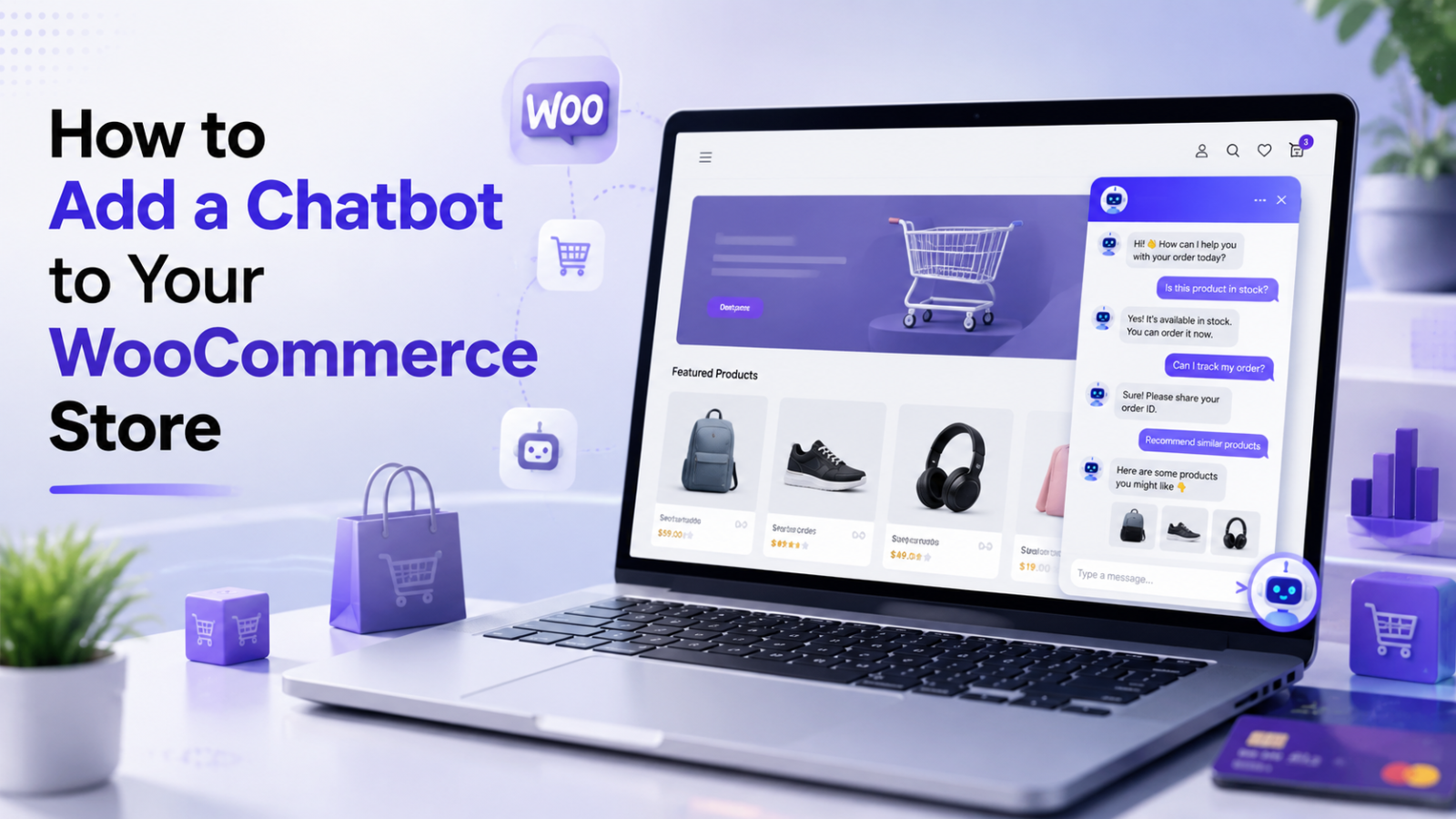
How to Add a Chatbot to Your WooCommerce Store
Learn how to add an AI chatbot to your WooCommerce store in minutes — answer product questions, recover abandoned carts, and capture leads 24/7. Free to start with Glanceia.
Introduction
WooCommerce powers millions of online stores — from handmade craft shops and boutique fashion brands to software companies selling digital products and subscription boxes shipping nationwide. If your ecommerce business runs on WooCommerce, you already have one of the most flexible and powerful store platforms available.
But WooCommerce — like every ecommerce platform — has the same conversion problem: shoppers arrive with questions, cannot find fast answers, and leave without buying. They want to know if a product comes in their size, whether delivery reaches their pin code, what the return policy is, or how a subscription works. These are the questions that stand between a browser and a buyer.
An AI chatbot solves this by being present on every product page, every category page, and every checkout page — answering questions instantly, recovering hesitant shoppers, capturing leads from visitors who are not ready to buy yet, and handling the repetitive support queries that currently pile into your inbox.
This guide walks you through exactly how to add a chatbot to your WooCommerce store using Glanceia, with no coding beyond a simple copy-paste step.
Why WooCommerce Stores Need a Chatbot
WooCommerce store owners face customer service and conversion challenges that are specific to ecommerce. Understanding these helps you configure your chatbot to solve the right problems from day one.
High cart abandonment rates Most ecommerce stores lose between 65 and 80 percent of shoppers who add items to their cart. A large proportion of these abandoners had a question that went unanswered at a critical moment — typically about delivery cost, return policy, or product specifications. A chatbot positioned on the cart and product pages can answer these questions in real time and recover sales that would otherwise be lost.
Repetitive support queries at scale WooCommerce store owners typically receive the same questions hundreds of times a month — order tracking, return initiation, product compatibility, delivery timelines, discount code validity. Every one of these costs support time and delays conversion. A chatbot trained on your store's specific policies and product information handles all of them automatically.
After-hours shopping patterns Ecommerce traffic peaks in the evenings and on weekends — exactly when most small WooCommerce store teams are offline. A chatbot ensures that a shopper browsing at 10 PM on a Friday gets answers to their questions instead of finding a dead contact form and moving on to a competitor.
Product discovery and recommendation Shoppers who are not sure which product is right for them need guidance. A chatbot that asks a few qualifying questions — skin type, use case, budget, technical requirements — and recommends the most appropriate product from your catalog converts browsers who would otherwise leave confused.
What a WooCommerce Chatbot Can Handle
Before setup, understand what a chatbot can realistically automate on your WooCommerce store:
Product information queries Specifications, dimensions, materials, compatibility, ingredients, sizing charts — any product detail that a shopper needs before buying and that is documented in your product descriptions.
Shipping and delivery questions Delivery timelines, shipping costs by location, free shipping thresholds, international shipping availability, courier partners used.
Return and refund policy How to initiate a return, the return window, refund timelines, what conditions apply, whether exchange is available.
Order status and tracking Common post-purchase queries about where an order is and when it will arrive — particularly valuable when integrated with your WooCommerce order management system.
Discount code and promotion queries Whether a discount code is still valid, what it applies to, how to use it at checkout.
Subscription and membership questions For WooCommerce Subscriptions users — how billing works, how to pause or cancel, what is included in different subscription tiers.
Lead capture for non-buyers Capturing email addresses from visitors who engaged with the chatbot but did not complete a purchase — for retargeting through email marketing.
Escalation to a human Routing complex complaints, damaged goods reports, or account-specific issues to your support team via email or WhatsApp.
Method 1: Embed Script via WooCommerce WordPress Footer (Recommended)
Since WooCommerce runs on WordPress, the same methods available for adding a chatbot to a WordPress site work for your WooCommerce store. The most reliable and fastest method is adding the Glanceia embed script to your WordPress footer — which places the chatbot on every page of your store including product pages, cart, checkout, and account pages.
Step 1: Create Your Glanceia Account and Build Your Chatbot
Go to Glanceia and create a free account. Inside the dashboard, create a new chatbot and upload your WooCommerce store content:
Your store FAQ document Write out the 20 to 30 most common questions your store receives and answer each one specifically. Include questions about shipping, returns, product care, sizing, compatibility, and payment methods.
Your product descriptions For stores with a manageable product catalog, upload descriptions of your key products — particularly those with frequent questions. A shopper asking "does the moisturiser contain parabens?" should get the answer from your uploaded product formulation, not a deflection to contact support.
Your full policy documentation Shipping policy, returns and refunds policy, warranty terms, subscription terms if applicable. Upload the complete text of each policy so the chatbot can answer policy questions with full accuracy.
Your contact and escalation information Support email address, WhatsApp number, business hours — so the chatbot can direct customers to a human when the query genuinely needs one.
Step 2: Customise the Widget for Your Store
Match the chatbot widget to your WooCommerce store's branding:
Set the widget color to your store's primary brand color using the exact hex code
Write a welcome message relevant to ecommerce visitors — "Hi! Have a question about a product, an order, or our return policy? I can answer right now."
Name the chatbot your store name or simply "Support"
Keep the position at bottom right
Step 3: Get Your Embed Script
Navigate to the embed section of your Glanceia dashboard and copy your unique embed script.
Step 4: Add the Script to Your WordPress Footer
Method A — Using WPCode Plugin (Recommended)
In your WordPress admin, go to Plugins → Add New
Search for WPCode (previously Insert Headers and Footers)
Install and activate the plugin
Go to Settings → Insert Headers and Footers (or Code Snippets → Header & Footer depending on version)
Paste your Glanceia embed script in the Footer Scripts box
Click Save
The chatbot is now live on every page of your WooCommerce store.
Method B — Direct Theme Edit
Go to Appearance → Theme File Editor in your WordPress admin
Open footer.php from the files list
Find the closing
</body>tagPaste your Glanceia embed script just above it
Click Update File
Which method to use: The WPCode plugin method is recommended because it survives theme updates — editing footer.php directly means your changes are overwritten when you update your theme. The plugin keeps the script independent of your theme files.
Step 5: Verify and Test
Open your WooCommerce store in an incognito browser window. The chat widget should appear in the bottom right corner.
Test it specifically on:
Your homepage
A product page — ask a product-specific question
Your cart page — ask about delivery cost
Your checkout page — ask about payment methods
The chatbot should appear and function on all of these pages.
Method 2: WooCommerce-Specific Page Targeting
For stores that want the chatbot on specific WooCommerce pages only — for example, only on product pages and the cart, but not on the account or order history pages — the WPCode plugin supports conditional logic.
After installing WPCode:
Go to Code Snippets → + Add Snippet (in newer WPCode versions)
Add your Glanceia embed script as a new snippet
Under Locations, set it to run in the footer
Under Conditions, set it to show only on specific WooCommerce page types — product pages, shop page, cart page, checkout page
Save and activate
This gives you precise control over which WooCommerce pages the chatbot appears on — useful for stores where you want to focus the chatbot on conversion-critical pages rather than account management pages.
Configuring Your WooCommerce Chatbot for Maximum Impact
Adding the embed is the technical step. The configuration decisions that follow determine how much commercial impact the chatbot actually delivers.
Configure Lead Capture for Non-Purchasing Visitors
Set the chatbot to collect visitor email addresses from shoppers who engage but do not complete a purchase. Configure it to ask naturally — "Want me to send you more details about this?" or "I can email you when this goes on sale — what's your email?" — rather than a blunt "enter your email" prompt.
Connect your captured leads to your email marketing tool via Zapier — Mailchimp, Klaviyo, ConvertKit, or whichever you use for your WooCommerce store. Every abandoned browse conversation becomes a warm email lead rather than an anonymous bounce.
Set Up Proactive Triggers for Cart Pages
Configure the chatbot to open proactively on your cart and checkout pages after a set time — 20 to 30 seconds works well. A shopper who has been on the cart page for 30 seconds with items sitting there is hesitating. A proactive "Hi! Any questions before you complete your order?" nudge at that exact moment resolves the hesitation that would otherwise lead to abandonment.
This single configuration — proactive trigger on cart pages — is one of the highest-ROI chatbot settings available for WooCommerce stores.
Train on Your Most Frequently Questioned Products
Not every product generates equal question volume. Identify your top five to ten most frequently questioned products — typically your bestsellers, your most technical items, or your highest-price items — and make sure your training content covers every common question about each one with specific, complete answers.
A shopper asking "which protein powder is best for someone who is lactose intolerant?" should get a specific recommendation from your catalog, not a generic "contact us for advice."
Write Product-Specific Welcome Messages for High-Intent Pages
Rather than one generic welcome message across your entire store, consider configuring different welcome messages for different page types. On product pages: "Hi! Have a question about this product? Ask me — I know everything about it." On the cart: "Questions before you check out? I can help right now." On the shop page: "Looking for something specific? Tell me what you need and I'll find it."
Integrating Glanceia With Your WooCommerce Marketing Stack
A WooCommerce chatbot delivers the most value when it is connected to the tools you already use for marketing and support.
Connecting to Klaviyo or Mailchimp
Set up a Zapier automation that triggers when a new lead is captured by Glanceia and adds that contact to your email marketing audience in Klaviyo or Mailchimp. Tag these contacts as "Chatbot Lead" so you can send them a specific welcome or nurture sequence different from your standard subscriber flow.
Connecting to Your CRM
For WooCommerce stores with a B2B or high-ticket component, connect Glanceia to your CRM via Zapier so chatbot-captured leads appear in your sales pipeline automatically with the conversation context attached.
Connecting to Google Sheets for Lead Tracking
If you prefer a simple lead log without a CRM, connect Glanceia to Google Sheets via Zapier — every new lead captured by the chatbot creates a new row in your sheet with name, email, the questions they asked, and the timestamp. Simple, searchable, and free.
Common WooCommerce Chatbot Mistakes to Avoid
Not updating the chatbot when products or policies change A chatbot quoting discontinued products, outdated prices, or superseded return policies actively damages trust. Update your Glanceia training content every time your store makes a significant change — new products, seasonal pricing updates, policy revisions, shipping partner changes.
Only placing the chatbot on the contact page If the chatbot only appears on your contact page, it misses every visitor who was hesitating on a product page or about to abandon their cart. Add it globally across your entire store via the footer script method.
Vague FAQ answers that deflect rather than resolve A chatbot that responds to "what is your return policy?" with "please contact us for return information" is worse than no chatbot at all. Write the actual policy in plain language, upload it to Glanceia, and let the chatbot give the complete answer.
No escalation path for genuine complaints A shopper who received a damaged item or a wrong order needs to speak to a human. Make sure your chatbot has a clear escalation path — your support email and WhatsApp number — so customers who need real help can get it immediately without getting stuck in a chatbot loop.
Ignoring mobile shoppers A large proportion of WooCommerce store traffic comes from mobile. Test the chatbot on a real phone — check that the widget is visible, the conversation is comfortable to use on a small screen, and the lead capture flow works correctly on mobile.
Real Example: What a WooCommerce Chatbot Conversation Looks Like
Here is a realistic chatbot conversation on a WooCommerce skincare store:
Visitor: Does the vitamin C serum work for sensitive skin?
Chatbot: Yes — our Vitamin C Brightening Serum is formulated specifically for sensitive skin types. It uses a stabilised ascorbic acid derivative (Sodium Ascorbyl Phosphate) which is significantly less irritating than L-Ascorbic Acid found in most vitamin C serums. It's fragrance-free, alcohol-free, and dermatologically tested. Most sensitive skin users find it suitable from the first application. Want me to tell you how to patch test it just to be safe?
Visitor: Yes please
Chatbot: Apply a small amount to your inner wrist or behind your ear and leave it on for 24 hours. If you experience no redness, itching, or irritation, it's safe to use on your face. Start with every other day for the first two weeks if you're new to vitamin C. Anything else I can help with — or would you like me to email you our full sensitive skin guide?
Visitor: That would be great
Chatbot: What email should I send it to?
This conversation answered a specific product question, provided genuine expert guidance, and captured the visitor's email — all automatically, without any staff involvement.
FAQ — Chatbot for WooCommerce
Does WooCommerce have a built-in chatbot? No. WooCommerce does not include a native chatbot. To add one, you need a third-party tool like Glanceia and add it to your WordPress site via a footer script or plugin.
Do I need a specific WooCommerce plugin to add a chatbot? No — you do not need a dedicated WooCommerce chatbot plugin. Glanceia embeds via a single JavaScript snippet added to your WordPress footer using the free WPCode plugin. No WooCommerce-specific plugin is required.
Will the chatbot slow down my WooCommerce store? No. Glanceia's embed script loads asynchronously and does not block your store's content from loading. It has no measurable impact on WooCommerce store load times or Core Web Vitals.
Can the chatbot show real-time order status from WooCommerce? The Glanceia chatbot answers questions from the content you upload — it does not pull live order data from WooCommerce directly. For order-specific queries, configure the chatbot to ask for the order number and direct the customer to your WooCommerce order tracking page or your support email.
Will the chatbot appear on product pages, cart, and checkout? Yes — when added via the global footer script method, the chatbot appears on every WooCommerce page including product pages, shop page, cart, checkout, and account pages. You can restrict it to specific page types using the WPCode plugin's conditional logic.
Does this work with any WordPress theme including WooCommerce themes like Flatsome or Astra? Yes. The chatbot is added via a JavaScript embed in the WordPress footer — it is theme-agnostic and works with any WordPress theme, including popular WooCommerce themes like Flatsome, Astra, Divi, Kadence, and Storefront.
What is the best free chatbot for WooCommerce? Glanceia's free plan is the best free chatbot for WooCommerce — AI included, lead capture included, works on any WordPress and WooCommerce setup via a single embed script, and has no time limit or credit card requirement on the free plan.
Final Thoughts
A WooCommerce chatbot is one of the highest-return additions you can make to your online store. It answers the questions that cause cart abandonment, captures the leads that currently bounce anonymously, and handles the repetitive support queries that consume your team's time — all automatically, at any hour.
The setup takes under 30 minutes. The embed requires one copy-paste step. The rest of the time goes into training the chatbot on your store's specific products and policies — which is exactly what determines how much it improves your conversion rate.
Every product question answered, every hesitant shopper engaged, every post-midnight browser captured — the chatbot does it all without anyone from your team needing to be there.
Ready to add a chatbot to your WooCommerce store for free? Try Glanceia — no credit card needed →
Published by Laxman - Team Glanceia