How to Automate Your Website Support Assistant in 2026
Learn how to automate your website support assistant in 2026 — answer questions instantly, capture leads, and handle customer queries 24/7 without extra staff. Free to start
Introduction
Every business owner knows the feeling. You check your inbox on Monday morning and find twelve variations of the same question sitting there from the weekend — what are your prices, do you deliver to this area, what is your return policy, how long does it take.
Each one takes two minutes to answer manually. Multiply that by every week and every team member spending time on repetitive support, and you start to see the real cost of unautomated website support. Not just in hours, but in the leads that never converted because nobody was there to answer at 9 PM on a Sunday.
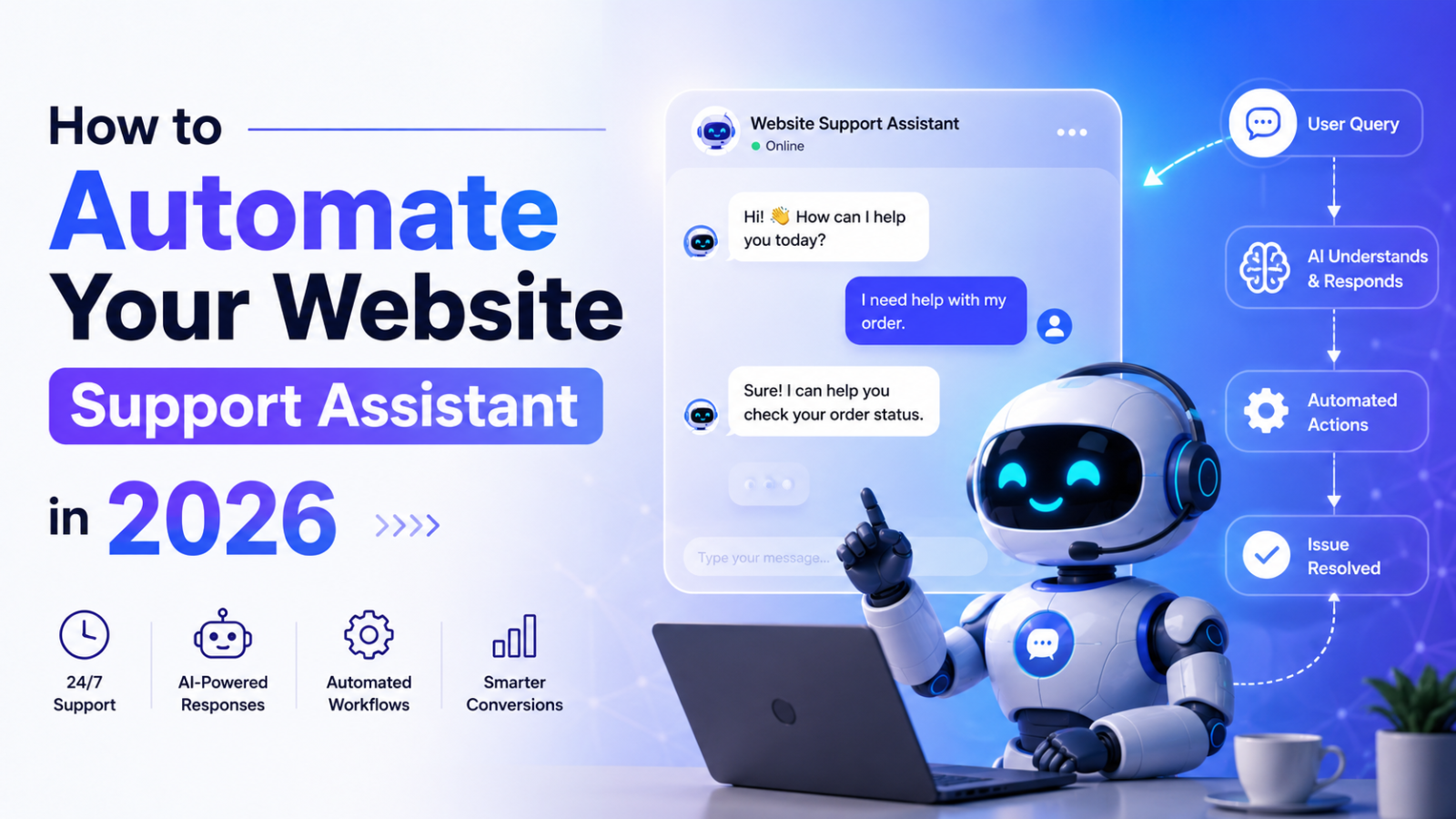
Automating your website support assistant in 2026 is not complicated. It does not require a developer, a big budget, or enterprise software. With the right tool and a well-prepared knowledge base, you can have an AI assistant answering your visitors' questions accurately, capturing their contact details, and handling your entire front-line support load — automatically, 24 hours a day — in under 30 minutes of setup.
This guide walks you through exactly how to do it.
What Does Automating Your Website Support Assistant Actually Mean?
Before getting into the how, be clear on what you are automating and what you are not.
Automating your website support assistant means putting an AI-powered chat interface on your website that handles the types of queries your team currently handles manually — pricing questions, availability, product details, policy queries, booking processes, FAQs. The AI reads your business content, understands what visitors are asking, and responds accurately without a human needing to be present.
What you are not automating is the judgment-intensive support that genuinely needs a human — complaints that require empathy and account-level decisions, complex technical issues that need real-time troubleshooting, high-value negotiations that benefit from a relationship. These still go to your team. The automation handles the volume so your team has time and energy for the interactions that actually need them.
The result is a support model where roughly 65 to 80 percent of incoming queries are resolved automatically, and your team's attention goes to the 20 to 35 percent that genuinely warrant it.
Step 1: Audit What You Are Currently Answering Manually
The first step in automating your website support has nothing to do with technology. It is a 20-minute audit of what your team currently answers repeatedly.
Go through your last 60 days of support emails, contact form submissions, and chat logs. Group them by topic. You will almost certainly find that the vast majority of your support volume clusters around five to ten core topics:
Pricing and what is included
Delivery timelines and shipping costs
Return and cancellation policies
Product specifications or service details
Booking and appointment processes
Order status and tracking
Account or subscription management
Business hours and contact information
Write down these clusters. They become the categories your automated support assistant needs to cover on day one. Any query that falls into these categories — and that has a consistent, factual answer — is a candidate for automation.
Queries that are highly individual, emotionally sensitive, or require accessing live data (a specific customer's account, real-time inventory, payment records) are not candidates for automation at this stage without deeper integration work.
Step 2: Build Your Support Knowledge Base
This is the most important step in the entire process. Your automated support assistant is only as good as the content it is trained on. A thorough knowledge base produces a thorough support assistant. A thin knowledge base produces a thin one.
Your knowledge base is the collection of documents your AI assistant will read, understand, and draw from when answering visitor questions. Here is what to include:
Your FAQ Document — The Foundation
Write out every question from your audit in Step 1, with specific, complete answers to each one. This is the single most valuable document you will create for your automated support assistant.
The quality of your FAQ answers determines the quality of your support responses. Compare these two answers to the same question:
Weak answer: "Our return policy allows returns within a certain period — contact us for details."
Strong answer: "You can return any item within 30 days of delivery for a full refund, as long as it is in its original packaging and unused condition. To start a return, email returns@yourbusiness.com with your order number. We process refunds within 5 to 7 business days of receiving the item."
The first answer generates a follow-up inquiry. The second resolves the question completely. Your automated assistant delivers exactly what you write — so write the real answer, not a direction to ask again.
Aim for 25 to 40 questions covering every topic from your audit. Do not summarise — write the complete answer to each one.
Product and Service Descriptions
Everything a visitor might need to know to make a purchase decision — what is included, what is not, how each option differs, who each option is designed for, typical outcomes. The more completely you describe your offerings, the more confidently the assistant can answer pre-purchase questions.
Full Policy Documentation
Do not summarise your policies for the knowledge base — upload the full text. Return policy, cancellation terms, shipping policy, booking conditions, warranty terms, privacy summary. The assistant needs the complete content, not an overview.
Process and Getting Started Information
How does a new customer actually get started with you? Step by step. What do they provide, what do you do, what happens when, and what is the expected timeline? Onboarding questions are common in support queues — a well-documented process dramatically reduces them.
Contact and Escalation Details
Your support email, phone number, WhatsApp, business hours, and the types of queries that should go to a human. The automated assistant needs to know when and how to direct a visitor to real support rather than attempting to handle everything itself.
Step 3: Choose Your Automation Platform
There are several tools available for automating website support. The right choice depends on your technical setup and what you need the assistant to do.
For most small and medium businesses — Glanceia
Glanceia is designed specifically for businesses that want to automate their website support without developer involvement. Upload your knowledge base documents, customise the chat widget, paste one embed script into your website, and you are live with a fully AI-powered support assistant in under 30 minutes.
What makes it the right starting point for most businesses:
AI is included on every plan including the free tier — no separate AI add-on. The assistant trains on your specific documents and answers from your content, not from general AI knowledge. Lead capture is built in — every support conversation can collect visitor contact details automatically. The embed works on WordPress, Wix, Webflow, Shopify, Squarespace, Framer, Next.js, or any custom site. The paid plan starts at $9 per month — the most affordable all-in price for a genuine AI support assistant.
For businesses on HubSpot — HubSpot Chatbot Builder
If your business already runs on HubSpot CRM, the built-in chatbot builder routes every support interaction directly into your CRM with zero additional setup. The limitation is that the free version uses rule-based flows rather than AI — suitable for highly predictable, scripted support scenarios but limited for natural language queries.
For technical teams wanting deep customisation — Chatbase
Chatbase supports broader document formats and offers more technical flexibility for businesses that need advanced configuration. The credit-based pricing system makes monthly costs harder to predict, and the free tier is effectively a trial rather than a permanent option.
Step 4: Configure Your Support Assistant
With your platform chosen and your knowledge base ready, the configuration stage determines how well your automated assistant performs in production.
Train on Your Knowledge Base
Upload every document from Step 2 to your platform's training section. On Glanceia, you can upload PDFs, paste text directly, or provide your website URL for automatic content reading. Upload everything — the more complete your knowledge base, the higher the proportion of queries your assistant resolves without escalation.
If you have content spread across multiple documents — a separate pricing PDF, a returns policy page, a service guide — upload all of them. The assistant pulls from everything you provide.
Write a Support-Specific Opening Message
Your assistant's opening message is the first thing every visitor sees. It should immediately signal what the assistant can help with — not a generic greeting that gives visitors no information about its capability.
Weak: "Hi! How can I help you today?"
Strong: "Hi! I can answer questions about our services, pricing, delivery, and returns right now. What do you need help with?"
The strong version tells visitors exactly what they can ask about and invites them to use the assistant. The weak version gives them no useful signal.
Write a version specific to your business. If you are an ecommerce store: "Hi! Questions about an order, our products, shipping, or returns? I can answer right now." If you are a service business: "Hello! Have a question about our services, pricing, or how to get started? Ask me anything."
Configure Escalation Paths
Your automated assistant will encounter questions it cannot answer from your knowledge base — queries that are too specific, too complex, or require live data it does not have access to. Every one of these moments needs a clear path forward, not a dead end.
Configure the assistant to provide your support email address, WhatsApp number, or a link to book a call when it cannot resolve a query. Include the expected response time so visitors know what to expect: "For questions about specific orders, email us at support@yourbusiness.com — we respond within 2 business hours."
A visitor who hits a wall and has no route to a human leaves with a worse impression of your business than one who was never offered automated support at all.
Set Up Lead Capture
Configure the assistant to collect visitor name and email at a natural point in support conversations — typically after resolving the initial question, when the visitor is engaged and has just experienced the assistant's value.
"Happy to send you more details on that — what email should I use?" converts a support interaction into a lead. Without this configuration, your automated assistant answers questions but does not capture the commercial value of each conversation.
Step 5: Embed on Your Website
Your automated support assistant needs to appear on every page of your website — not just the contact page. Visitors have questions on your homepage, your services page, your pricing page, and your product pages. Restricting the assistant to one page means missing the majority of support opportunities.
Glanceia generates a single embed script that goes into your website footer — adding the assistant to every page in one step. Platform-specific instructions:
WordPress: Install the free WPCode plugin → Settings → Insert Headers and Footers → paste your script in the Footer Scripts section → Save
Wix: Settings → Custom Code → Add Custom Code → paste your script → All Pages → Body end → Apply → Publish
Webflow: Project Settings → Custom Code → Footer Code → paste your script → Save → Publish
Shopify: Online Store → Themes → Edit Code → theme.liquid → paste just before </body> → Save
Squarespace: Settings → Advanced → Code Injection → Footer → paste your script → Save
Any HTML website: Open your main file → find </body> → paste just above it → save
Step 6: Test Before You Go Live
Testing is the step most businesses skip and later regret. A support assistant that gives wrong answers to real visitor questions does active damage to trust.
Before publishing, test your assistant with the 20 most common questions your support team currently handles. For each one, verify:
Does the answer match what a human support agent would say? Is it specific rather than vague? Does it completely resolve the question or create a new one?
Then test what happens when you ask something the assistant was not trained on. Does it acknowledge the limit gracefully and provide a clear next step — or does it attempt to answer with confident-sounding information it does not actually have? The former is correct. The latter is a problem requiring more specific training content or clearer escalation configuration.
Test on mobile. A large proportion of website visitors are on phones. The assistant must be visible, easy to tap, and comfortable to use on a small screen.
Step 7: Review Performance and Improve
An automated support assistant is not a set-and-forget deployment. The businesses that get the most from their automation are the ones that treat the first 30 days as a calibration period.
Review conversation logs weekly during the first month
Your assistant's conversation history is your most direct source of insight into what your visitors need and how well the automation is working. Look for:
Questions the assistant could not answer — these are knowledge base gaps. Add specific answers and re-upload the relevant documents.
Questions it answered vaguely — these indicate FAQ entries that need to be made more specific. Rewrite them with complete, detailed responses.
Questions that led to escalation — review whether these are genuinely complex queries or whether better knowledge base content could have resolved them.
Track two key metrics
Resolution rate — the percentage of support conversations the assistant resolves without escalation to a human. Start by establishing your baseline in the first week. A well-configured automated support assistant typically achieves 60 to 75 percent resolution rate within the first month as the knowledge base is refined.
Support email volume — track whether the volume of manual support emails and messages decreases after the assistant goes live. For most businesses, a meaningful reduction in repetitive support queries is visible within 30 days.
Update the knowledge base when your business changes
New pricing, new services, changed policies, new product lines — every time something in your business changes, update the corresponding knowledge base documents immediately. An automated assistant giving outdated information about prices or policies that no longer apply creates more support work than it saves.
Common Mistakes to Avoid When Automating Support
Treating the FAQ as a formality The quality of your FAQ document is the single biggest factor in your assistant's performance. Businesses that write thin, vague FAQ answers get thin, vague assistant responses. Invest the time to write complete, specific answers to every question your team currently handles — it pays back immediately in resolution quality.
Not configuring an escalation path Every automated support assistant needs a clear route to a human for queries it cannot resolve. Configuring "contact us for more information" without providing an actual contact method is not an escalation path — it is a dead end. Include your actual email, phone, or WhatsApp number.
Restricting the assistant to one page A support assistant that only appears on your contact page misses every visitor who had a question while browsing your services or pricing. Embed it globally across every page.
Ignoring the conversation logs The conversation logs are your feedback loop. Every query the assistant could not resolve is a gap you can fill. Businesses that review logs regularly and update their knowledge base consistently achieve meaningfully better resolution rates within 30 to 60 days.
Not testing on mobile Mobile traffic represents a large and growing proportion of website visitors. If the assistant widget does not display correctly or is difficult to use on a phone, you are automating support for only half your audience.
What to Expect in the First 90 Days
Days 1 to 14: Calibration Your assistant is live and having real conversations. You will find gaps in your knowledge base from questions it could not answer. Fill them immediately. This period is about refinement, not expectation of perfect performance.
Days 15 to 45: Improvement With gaps filled and common queries well-handled, resolution rates improve. You will notice a meaningful reduction in repetitive support emails. Your team's attention shifts toward the complex queries that actually need human judgment.
Days 46 to 90: Steady State Your automated support assistant handles the majority of front-line queries reliably. Resolution rates plateau at a consistent level. Your knowledge base is comprehensive enough that new visitors rarely encounter gaps. The focus shifts from calibration to monitoring and incremental improvement.
FAQ — Automating Website Support
What does it cost to automate website support? With Glanceia, you can start for free with no credit card required. The paid plan starts at $9 per month — the most affordable all-in price for a genuine AI support assistant. There are no hidden AI add-on fees or per-conversation charges.
How long does it take to set up an automated support assistant? With a pre-prepared knowledge base, setup takes under 30 minutes from account creation to live embed. The preparation of the knowledge base itself — writing FAQ answers and gathering policy documents — typically takes one to two hours for most small businesses.
Can the assistant handle any question a visitor asks? No — and it should not try. The assistant handles queries that have consistent, factual answers from your knowledge base. Complex account-specific queries, emotionally sensitive complaints, and issues requiring real-time system access should be escalated to a human. A well-configured escalation path makes this seamless.
Do I need a developer to set this up? No. The entire setup process — account creation, knowledge base upload, widget customisation, and website embed — requires no coding knowledge. The most technical step is pasting one line of code into your website settings.
Will the assistant replace my support team? No. It reduces the repetitive, high-volume queries your team handles repeatedly, freeing them to focus on complex and high-value interactions that genuinely need human judgment. The goal is a support model where your team spends their time on the work that actually requires them.
What happens if the assistant gives a wrong answer? Update the relevant knowledge base content in your dashboard and it corrects immediately for all future conversations. Regular review of conversation logs catches these issues quickly and keeps answer quality high.
Final Thoughts
Automating your website support assistant is one of the highest-return operational improvements a small business can make in 2026. The technology is accessible, the setup is fast, and the impact shows up from the first week — fewer repetitive emails, faster responses for visitors, and more time for your team to focus on the work that actually requires human expertise.
The quality of your knowledge base determines the quality of your automation. Invest time in writing complete, specific FAQ answers and your automated assistant will handle the majority of your support volume accurately. Skip that investment and the automation will underperform regardless of which platform you choose.
Start with the free plan. Build a thorough knowledge base. Go live. Review the logs. Improve continuously.
Ready to automate your website support for free? Try Glanceia — no credit card needed →
Published by Laxman- Team Glanceia