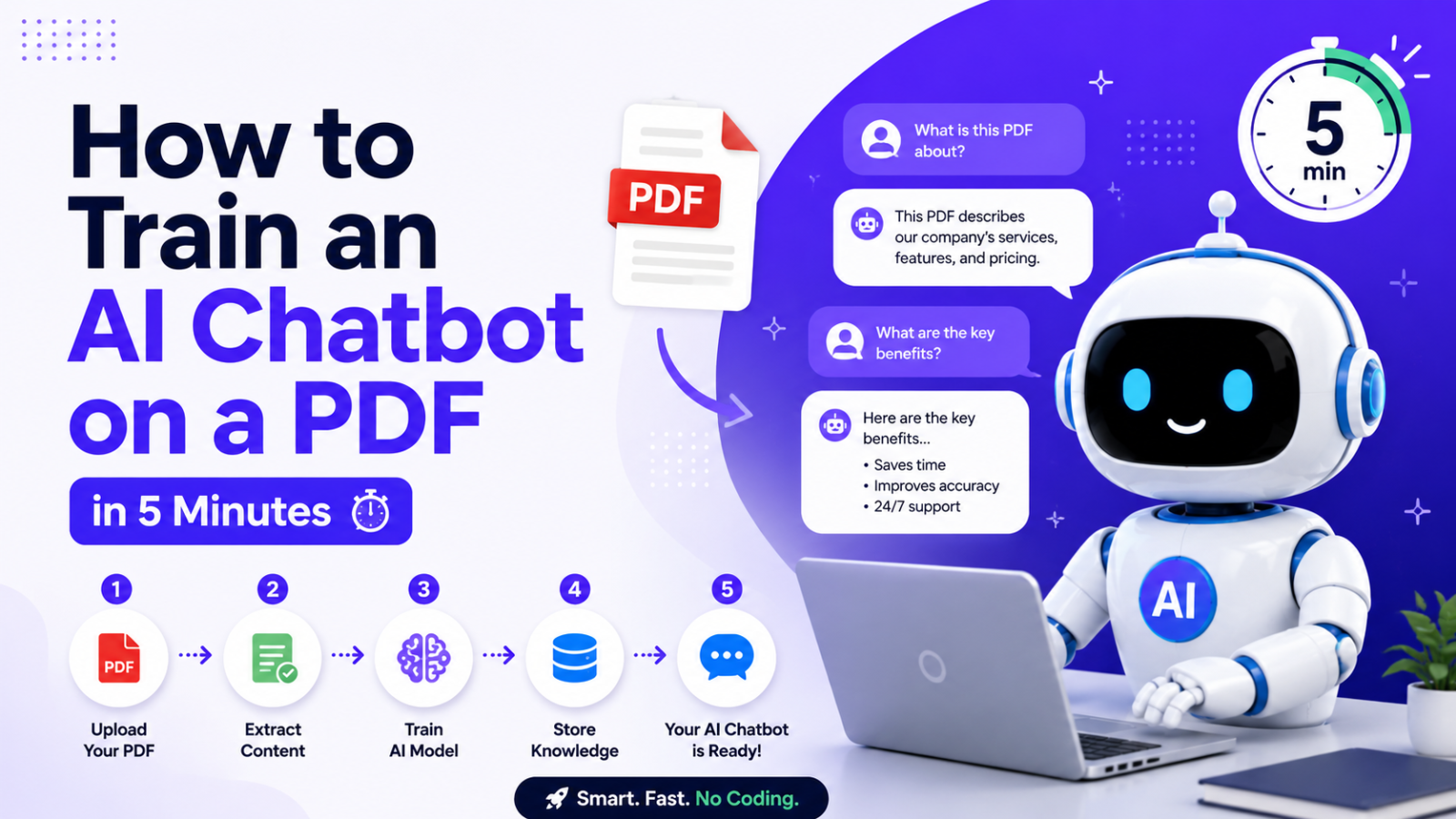
How to Train an AI Chatbot on a PDF in 5 Minutes
Learn exactly how to train an AI chatbot on a PDF in 5 minutes — no coding needed. Upload your documents and go live with a chatbot that answers questions from your own content.
Introduction
You have a PDF. It could be your product brochure, your service guide, your FAQ document, your policy manual, or your company handbook. It contains everything your customers need to know about your business — and right now it sits in a folder that most visitors never find.
What if that same PDF could power an AI chatbot on your website — one that reads every page, understands every detail, and answers visitor questions from it instantly, 24 hours a day?
That is exactly what training an AI chatbot on a PDF does. And in 2026, the process takes about 5 minutes from upload to live chatbot — no coding, no developer, no complicated setup.
This guide walks you through the entire process step by step.
What Does "Training a Chatbot on a PDF" Actually Mean?
Before jumping into the steps, let us be clear about what happens when you train a chatbot on a PDF.
You are not programming the chatbot to memorize fixed answers. You are giving an AI large language model a source document to read and understand — so that when visitors ask questions, the AI generates accurate answers based specifically on the content in your PDF.
This is fundamentally different from a rule-based chatbot where you manually program every question and answer pair. When you train on a PDF:
The AI reads and processes every page of the document
It understands the context and relationships between pieces of information
When a visitor asks a question, it searches the document for the most relevant answer
It generates a conversational, natural response — not a copy-paste of text from the PDF
It handles follow-up questions and differently-worded variations of the same question
The result is a chatbot that genuinely knows your content — not one that pretends to.
Why PDF Training Is the Best Way to Build a Business Chatbot
Most business owners struggle with chatbot setup because they think they have to write out hundreds of question-and-answer pairs manually. That is the old way. PDF training makes it far faster and more comprehensive.
Here is why training on PDFs works so well for business chatbots:
You already have the content Most businesses already have exactly what they need to train a chatbot — service brochures, product specs, FAQ documents, policy manuals, welcome guides. You do not need to create anything new. You just upload what already exists.
PDFs are information-dense A single well-written 10-page PDF can contain enough information to power answers to hundreds of different visitor questions. One upload replaces hours of manual question-answer writing.
The AI understands structure Modern AI reads PDF headings, subheadings, tables, bullet points, and body text — understanding which pieces of information relate to which topics. The structure of your PDF helps the AI organise what it knows.
Updates are instant When your pricing changes or you add a new service, update the PDF and re-upload. The chatbot's knowledge updates immediately — no need to find and edit individual Q&A entries.
It handles questions you did not anticipate Because the AI understands the content conceptually rather than matching keywords, it can answer questions about the PDF's content even when they are phrased in ways you never thought to write down.
What PDFs Work Best for Chatbot Training
Not every PDF produces equally good chatbot results. Here is what to look for — and what to avoid.
PDFs That Work Well
FAQ documents A well-written FAQ is the single highest-impact document you can train a chatbot on. It directly maps to the questions visitors ask. The more specific and complete the answers, the better the chatbot performs.
Service or product brochures Brochures that explain what you offer, what is included, pricing, and how to get started give the chatbot the product knowledge it needs to answer pre-purchase questions.
Company or policy handbooks Documents covering your processes, terms, policies, and procedures — anything customers might ask about how your business works.
Onboarding guides Step-by-step guides that walk customers through a process — signing up, getting started, making a booking, using a product.
Pricing documents Detailed pricing breakdowns with what is included at each tier, how pricing is calculated, and what additional charges apply.
What to Avoid Uploading
Scanned image PDFs PDFs created by scanning physical documents are images, not text. Most AI systems cannot read the text in an image-based PDF without OCR processing. Use text-based PDFs — ones where you can click and highlight the text.
PDFs with vague or incomplete information A PDF that says "pricing varies — contact us for a quote" for every pricing question will produce a chatbot that deflects every pricing question. The chatbot is only as specific as the content it was trained on.
Heavily formatted PDFs with complex layouts Multi-column layouts, overlapping text boxes, and complex infographic-style PDFs can confuse the text extraction process. Simple, clean formatting produces better results.
Outdated documents Training a chatbot on a PDF from two years ago means the chatbot gives outdated information. Always train on the most current version of every document.
Step-by-Step: How to Train an AI Chatbot on a PDF in 5 Minutes
This walkthrough uses Glanceia — the most beginner-friendly AI chatbot platform for PDF training in 2026. Free plan available with no credit card required.
Minute 1: Sign Up and Create Your Chatbot
Go to Glanceia and create a free account. The signup takes about 30 seconds — name, email, password, done.
Once inside the dashboard, click to create a new chatbot. Give it a name — this can be your business name, a product name, or simply "Support." Choose your default language if needed.
You are now inside your chatbot's configuration. The clock is running.
Minute 2: Upload Your PDF
Navigate to the training or knowledge base section of your Glanceia dashboard. You will see options to add content — PDF upload, text paste, and URL.
Click Upload PDF and select your document from your computer. Glanceia accepts standard PDF files up to a generous file size limit. For most business documents — brochures, FAQ sheets, policy documents — the upload takes 5 to 15 seconds depending on file size.
Once uploaded, Glanceia processes the PDF automatically. The AI reads through every page, extracts the text, understands the structure, and builds its knowledge base from the content. This processing typically takes 30 to 60 seconds for a standard business document.
You can upload multiple PDFs if your content is spread across several documents. Upload your FAQ PDF, your pricing PDF, and your services PDF in one session — the chatbot learns from all of them together.
Minute 3: Add Any Supplementary Content
While PDF upload is fast, take a minute to supplement it with any additional content the PDF might not cover.
Paste in your business contact details — phone number, email, WhatsApp, address, business hours — directly into the text input field. This ensures the chatbot can answer "how do I contact you?" accurately even if that information is not clearly stated in your PDF.
If your website has a FAQ page, paste the URL into the URL field and Glanceia will read that page too. Layering multiple content sources gives the chatbot a richer knowledge base and reduces the chances of a question catching it off guard.
Minute 4: Customise the Widget
With the content uploaded, spend one minute customising how the chatbot looks and introduces itself.
Welcome message This is the first thing visitors see when the chatbot opens. Write something specific to your business rather than a generic greeting:
"Hi! Have a question about our services, pricing, or how to get started? Ask me — I have all the answers."
"Hello! I have read through our entire guide and FAQ. What would you like to know?"
"Hi there! Looking for information about our packages or policies? I can help right now."
Widget color Match the chat bubble to your website's primary brand color so it looks like a designed part of your site rather than a generic widget.
Chatbot name Use your business name or a simple label like "Support" or "Ask Us."
Minute 5: Get the Embed Script and Go Live
In your Glanceia dashboard, navigate to the deploy or embed section. You will see your unique embed script — a single line of JavaScript.
Copy the script.
Open your website settings and paste the script into your footer code area. Where you find this depends on your platform:
WordPress: Plugins → WPCode → Footer Scripts → paste → Save
Wix: Settings → Custom Code → Add Code → paste → Body End → All Pages → Apply → Publish
Webflow: Project Settings → Custom Code → Footer Code → paste → Save → Publish
Shopify: Online Store → Themes → Edit Code → theme.liquid → paste before
</body>→ SaveHTML site: Open your HTML file → find
</body>→ paste the script just above it → Save
Once published, the chatbot is live on every page of your website. Open an incognito browser window and visit your site — you should see the chat widget in the bottom right corner.
Ask it a question from your PDF. Watch it answer from your own content.
That is it. Five minutes. Your PDF is now a live AI chatbot.
How to Test Your PDF-Trained Chatbot Before Going Live
Testing before publishing is the most important step most people skip. A chatbot that gives wrong answers to the first question a visitor asks destroys trust immediately.
Here is how to test properly:
Test from the PDF itself Open your PDF side by side with the chatbot. Ask questions about specific details — exact prices, specific policy terms, step-by-step processes. The chatbot should give accurate, specific answers that match what is in the document.
Test with rephrased questions Ask the same question multiple ways. "What is your cancellation policy?" and "Can I cancel my booking?" and "What happens if I need to cancel?" should all get accurate, consistent answers. This tests whether the AI truly understands the content or is just keyword-matching.
Test what it does not know Ask a question that is not covered anywhere in your PDF. The chatbot should acknowledge that it does not have that specific information and offer a next step — your email address, phone number, or a link to book a call. It should never give a confident-sounding answer about something it was not trained on.
Test on mobile Open your site on a phone and test the chatbot there. The widget should be clearly visible and easy to tap. Text should be readable on a small screen. The conversation should flow as smoothly as on desktop.
Test the lead capture Make sure the chatbot asks for visitor contact details at a natural point in the conversation. Verify that submitted details appear in your Glanceia dashboard.
How to Improve Your PDF-Trained Chatbot Over Time
Going live is the beginning of a continuous improvement cycle. Here is what to do in the days and weeks after launch.
Review Unanswered Questions Weekly
Your Glanceia dashboard shows you every conversation visitors have with the chatbot — including the questions it could not answer well. These are gaps in your PDF content.
For each unanswered question, either:
Add a new section to your FAQ PDF covering that topic, then re-upload
Paste the question and answer directly into the text content section
Every gap you fill makes the chatbot more capable. Within a few weeks of regular reviewing, most well-maintained chatbots can handle the vast majority of real visitor questions without escalation.
Update the PDF When Your Business Changes
This is the most commonly forgotten maintenance task. When you update your pricing, add a new service, change your cancellation policy, or launch a new product — update the PDF and re-upload it.
An outdated chatbot giving wrong pricing or referring to discontinued services actively harms trust. Update the training content at the same time you update your website.
Add More PDFs as Your Content Grows
Your initial upload might be just one FAQ document. Over time, add more:
A detailed pricing and packages PDF
A services overview PDF
Case studies or success story PDFs
A terms and conditions PDF
Individual product specification PDFs for each offering
Each additional PDF adds to the chatbot's knowledge base and reduces the proportion of questions it cannot handle.
Track Which Topics Come Up Most
The most frequently asked questions in your chatbot logs tell you two things: what your website is not clearly communicating, and what visitors care most about. Use this data to improve your website content and prioritise what to add to your PDF training.
Common Questions About PDF Chatbot Training
How many pages can the PDF be? Glanceia handles PDFs of varying lengths. Most business documents — brochures, FAQ guides, policy manuals — fall well within the supported range. For very large documents (100+ pages), consider splitting them by topic for cleaner organisation.
Can I upload multiple PDFs? Yes. Upload as many PDFs as you have relevant content for. The chatbot builds its knowledge base from all uploaded documents together. Your FAQ PDF, pricing PDF, and services PDF all contribute to one unified knowledge base.
What if my PDF has images and charts? The AI extracts and processes text from the PDF. Images, charts, and diagrams that do not contain text are not directly readable. Make sure your key information is in text form — if your pricing is only shown in an image, type it out in the text content section as well.
Can I update the PDF after I have gone live? Yes. Upload a new version of the PDF at any time. Glanceia processes the update and the chatbot's knowledge updates immediately. You do not need to touch your website embed code.
Does the chatbot quote directly from the PDF? No. The AI generates natural conversational responses based on the content in the PDF — it does not copy-paste paragraphs. The response feels like a knowledgeable human answering the question, not like a ctrl-F search result.
What happens when the chatbot does not know the answer? If a question falls outside what is covered in your uploaded PDFs and other content, the chatbot should acknowledge the limit and offer a next step — your contact email, WhatsApp number, or a link to book a call. Always configure this escalation path before going live.
Is my PDF data secure? Reputable platforms including Glanceia keep your uploaded content secure and private. Your PDF content is used to train your specific chatbot and is not shared with other users or used to train general AI models.
Do I need to update the chatbot embed code when I update the PDF? No. Once the embed script is on your website, it stays there permanently. All content updates — uploading new PDFs, editing text content, adding more documents — happen in the Glanceia dashboard and take effect immediately without any changes to your website.
What Kinds of Businesses Get the Best Results From PDF-Trained Chatbots
Almost any business with information-dense PDF content benefits from this approach. Here are the use cases that see the fastest and clearest results:
Travel agencies and tour operators Upload your package brochures and itinerary PDFs. Visitors asking about destinations, pricing, inclusions, and visa requirements get instant, specific answers from your real documents — not generic travel advice.
Professional service firms Law firms, accounting practices, consulting agencies — upload your service guide and FAQ. Clients asking about process, timelines, and fees get clear answers without waiting for a callback.
Healthcare clinics and wellness businesses Upload your services list, pricing guide, and patient FAQ. Visitors asking about treatments, costs, and booking processes get answers immediately — reducing front desk call volume significantly.
Real estate agencies Upload property brochures, area guides, and agency FAQ. Potential buyers and renters asking about specific properties, pricing, and the buying or renting process get instant, accurate responses.
Education and training providers Upload your course catalog and enrollment guide. Prospective students asking about course content, duration, pricing, and admission requirements get immediate, complete answers.
Ecommerce and product businesses Upload your product catalog PDF and returns policy. Shoppers asking about specifications, compatibility, and return terms get confident answers at the moment of purchase decision.
The Difference Between a PDF-Trained Chatbot and a Generic Chatbot
This distinction is worth understanding before you start. There are chatbot platforms that deploy a general AI without training it on your specific content. These bots answer questions using the AI's general knowledge — not your business information.
A visitor asking "what is your pricing?" to a generic AI chatbot will get an answer like "pricing depends on your specific needs — I recommend visiting the pricing page for more details."
A visitor asking the same question to a PDF-trained chatbot trained on your pricing document will get: "Our Starter plan is $9 per month and includes up to 500 conversations with full AI training on your content. The Pro plan is $29 per month and adds higher volume and priority support."
The second answer is the one that converts. And it is only possible because the chatbot was trained on your specific PDF.
This is why PDF training is not just a feature — it is the feature that determines whether a business chatbot is actually useful.
Final Thoughts
Training an AI chatbot on a PDF used to be a technical project requiring developer time and significant budget. In 2026, it is a 5-minute task that any business owner can complete without technical knowledge.
Your PDF contains everything your customers need to know. A chatbot trained on it gives every visitor — at any hour, on any day — instant access to that information in a natural, conversational way.
The result is fewer unanswered questions, more captured leads, less repetitive work for your team, and a better experience for every visitor who lands on your site.
Start with the PDF you already have. Go live today.
Ready to train your AI chatbot on your PDF for free? Try Glanceia — no credit card needed →
Published by Laxman - Team Glanceia