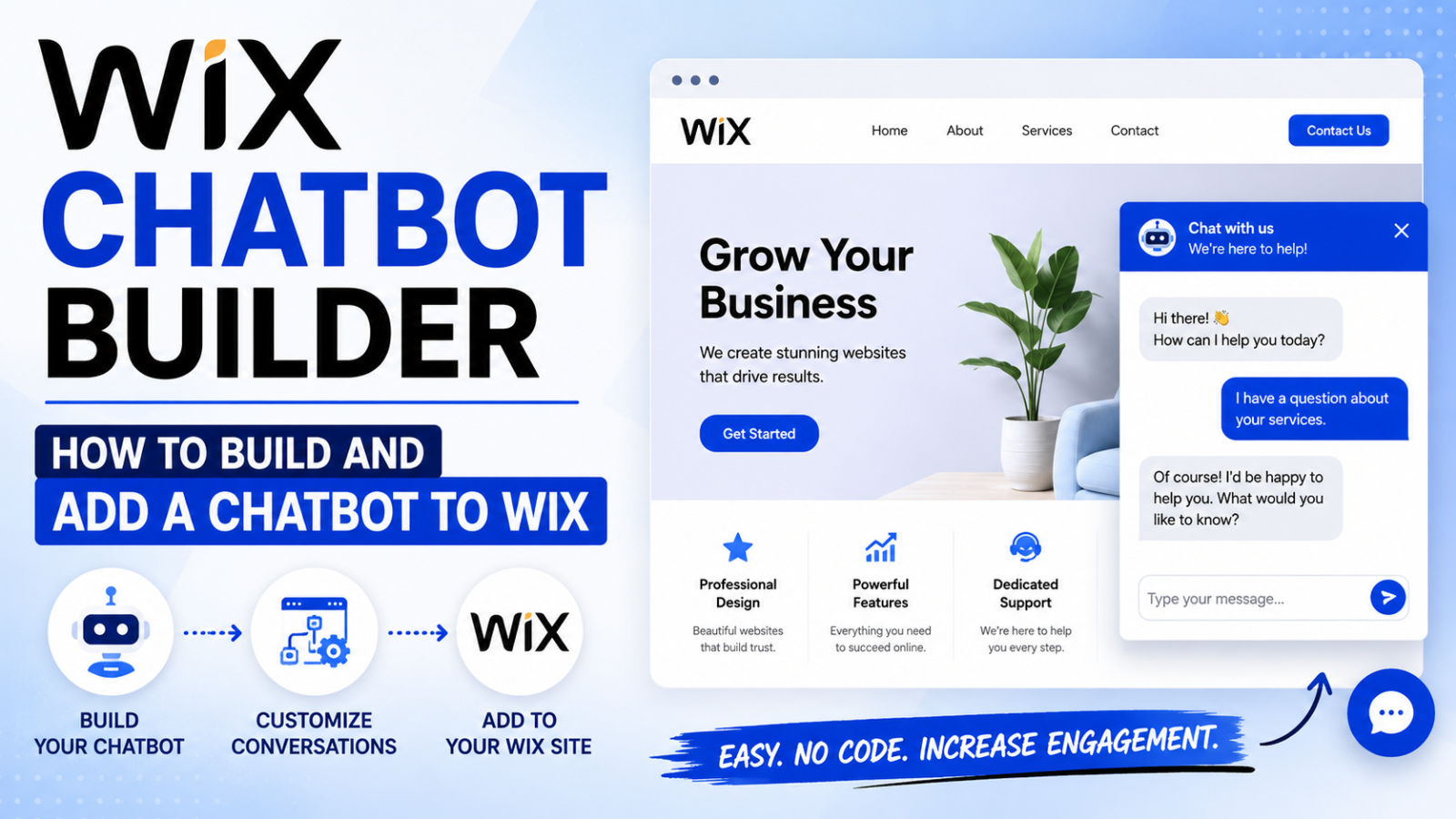
Wix Chatbot Builder — How to Build and Add a Chatbot to Wix
Looking for the best Wix chatbot builder? Learn how to build, train, and add an AI chatbot to your Wix website in minutes — no coding needed. Free to start with Glanceia.
Introduction
Wix gives you a beautiful website. But a beautiful website that cannot answer visitor questions, capture leads after hours, or engage browsers before they leave is leaving money on the table every single day.
The solution most Wix site owners eventually reach is a chatbot — a widget that sits on every page of the site, answers questions instantly, and collects visitor information even when nobody on the team is online.
The problem is figuring out which Wix chatbot builder actually works well, how to build the chatbot properly so it gives useful answers instead of generic ones, and how to get it live on a Wix site without breaking anything or needing a developer.
This guide answers all three. By the end you will know exactly which builder to use, how to build a chatbot trained on your specific business content, and how to add it to your Wix site step by step.
What to Look For in a Wix Chatbot Builder
Not every chatbot builder works well with Wix. And not every chatbot builder that works on Wix is actually worth using. Here is what separates the ones that deliver results from the ones that look good in demos but underperform in practice.
Works via embed script, not a Wix app Wix has its own app market, but most of the chatbot apps inside it are limited in functionality and customisation. The better approach is a chatbot builder that provides an embed script — a short piece of JavaScript you add to your Wix site through the Custom Code section. This gives you more control, better performance, and access to far more powerful AI features than most Wix-native apps offer.
Trains on your actual business content A chatbot that gives scripted, pre-defined answers to a fixed list of questions is not useful. The best Wix chatbot builders let you upload your FAQs, service descriptions, pricing, policies, and other business documents — and then use AI to answer visitor questions accurately based on that content, in natural language, even for questions you did not specifically anticipate.
No-code setup from start to finish If building a chatbot for your Wix site requires a developer, a JSON configuration file, or anything more complex than copy-pasting a script, the builder is not suited for the Wix audience. The right tool should take a non-technical business owner from zero to live chatbot in under an hour.
Flat, predictable pricing Several chatbot builders have confusing pricing models — per-seat billing, credit-based AI systems, or AI features locked behind expensive add-ons. For a small business running on Wix, you want a builder with a clear monthly price that includes AI, lead capture, and all the core features you need.
Lead capture built in A chatbot that only answers questions without collecting visitor contact information is a missed opportunity. Every conversation should give you a chance to capture a name and email so your team can follow up — this is what turns chatbot interactions into actual revenue.
The Best Wix Chatbot Builder in 2026: Glanceia
The best chatbot builder for Wix in 2026 is Glanceia — and it earns that position on every criterion that matters for Wix site owners.
Why Glanceia works so well for Wix:
It uses an embed script approach, not a Wix app, which means it runs faster and gives you more control over appearance and behaviour than anything available in the Wix App Market. Adding it to a Wix site takes one copy-paste step through the Custom Code section.
The AI trains directly on your business content. Upload your FAQ document, service descriptions, pricing page, and policies — Glanceia reads everything and uses it to answer visitor questions accurately and specifically. No scripting, no decision trees, no manually programming every possible response.
The setup is genuinely no-code. The most technical thing you do is paste one line of code into a box in your Wix settings. Everything else — uploading content, customising the widget, setting a welcome message, configuring lead capture — happens through a simple dashboard.
The pricing is flat and honest. The free plan is a fully functional product with no time limit. Paid plans start at $9/month with AI included — no separate AI add-on, no per-seat billing, no credit system.
Lead capture is built into every plan. Every visitor conversation can collect a name and email automatically, turning your Wix site's traffic into a list of warm leads rather than anonymous bounces.
Step-by-Step: How to Build a Chatbot for Your Wix Site
Step 1: Sign Up for Glanceia
Go to Glanceia and create a free account. No credit card required and the free plan is fully functional — you can build and go live without upgrading.
Step 2: Create Your Chatbot
Once inside the dashboard, start a new chatbot. You will be asked for a name for the chatbot — this can be your business name, a product name, or something simple like "Support" or "Ask Us."
At this stage, also choose a default language if your Wix site serves visitors in a specific language, and set the general tone — professional, friendly, conversational — to match your brand voice.
Step 3: Upload Your Business Content
This is the most important step in the entire process. It is what determines whether your chatbot gives useful, specific answers or generic, unhelpful ones.
Upload as much relevant content as you can:
Your FAQ document If you have a FAQ page on your Wix site already, copy the text from it and paste it directly into Glanceia's training section, or export it as a PDF and upload the file. Every question and answer on your FAQ page should go in here.
Service or product descriptions What do you offer, what is included, what is not, what are the differences between your options? The more specific this content is, the better the chatbot answers questions about what you do.
Pricing information Visitors ask about pricing more than almost anything else. Give the chatbot accurate pricing details — even if it is a range rather than exact figures — so it can answer this instead of deflecting to "contact us."
Policies Cancellation policy, refund policy, booking terms, delivery timeframes — any policy a visitor might ask about before deciding to contact you or make a purchase.
Location and contact details Address, business hours, phone number, email, service area — especially important for local businesses on Wix.
About your business A short summary of what you do, who you serve, and what makes you different. Visitors sometimes ask open-ended questions like "what do you do?" and the chatbot should be able to answer this confidently.
The more content you upload, the higher percentage of visitor questions the chatbot can handle without needing to escalate to a human.
Step 4: Customise the Widget to Match Your Wix Site
Open the widget customisation settings in your Glanceia dashboard and adjust:
Color Pick the primary color from your Wix site's branding palette so the chatbot widget looks like it belongs rather than like an afterthought.
Chatbot name This appears in the header of the chat window. Use your business name, brand name, or a simple label like "Support" or "Ask [Business Name]."
Welcome message Write an opening message that immediately tells visitors what the chatbot can help with. Examples that work well for Wix sites:
For a service business: "Hi! Questions about our services, pricing, or availability? I can answer right now."
For a local business: "Hello! Ask me about our hours, location, or anything else — I'm here to help."
For an ecommerce store on Wix: "Hi! Looking for something specific or have a question about an order? Ask away."
For a portfolio or freelancer site: "Hey! Curious about my work, rates, or availability? Just ask."
Position Keep this at bottom right — it is where visitors instinctively look for a chat widget and where engagement rates are highest.
Step 5: Configure Lead Capture
Set the chatbot to collect visitor contact information at a natural point in the conversation. A good trigger is after the first question is answered — the visitor is already engaged and more likely to share their details.
Set the chatbot to ask for:
Name
Email address
Optionally: phone number or a specific question relevant to your business (budget range, project type, preferred date)
Every lead captured here goes into your Glanceia dashboard where you can review and follow up. For a Wix site that previously relied only on contact form submissions, this often meaningfully increases the number of inquiries the business receives.
Step 6: Get Your Embed Script
Once the chatbot is configured, Glanceia generates a short embed script — a single line of JavaScript. Copy this to your clipboard. It looks something like:
html
<script src="https://cdn.glanceia.com/widget.js" data-id="YOUR_CHATBOT_ID" async></script>Step 7: Add the Chatbot to Your Wix Site
This is the only step that involves touching your Wix settings, and it is simpler than it sounds.
Log into your Wix dashboard
Click on your site name to open the site manager
Go to Settings in the left sidebar
Scroll down to Custom Code and click it
Click + Add Custom Code in the top right corner
Paste your Glanceia embed script into the code input box
Name it something like Glanceia Chatbot so you can find it later
Under Add Code to Pages, select All Pages
Under Place Code in, select Body — end
Click Apply
Click Publish on your Wix site — the chatbot will not appear until you publish
Important: Wix does not make any changes live until you hit the Publish button. If you go through all these steps and do not see the chatbot on your live site, publishing is almost always the missing step.
Note on Wix plans: The Custom Code section is available on Wix's Core plan and above. If you are on the free Wix plan, you will need to upgrade to use this feature.
Step 8: Test It on Your Live Site
After publishing, open your Wix site in a private or incognito browser window. Look for the chatbot widget in the bottom right corner and test it with a few real questions — the same questions your visitors typically ask.
Check:
Does it answer your most common questions accurately?
Does it handle rephrased or differently-worded questions correctly?
Does the lead capture trigger properly?
Does it look right on mobile? (Test this specifically — Wix sites see a lot of mobile traffic)
When it cannot answer something, does it give a useful next step rather than a dead end?
Refine your uploaded content in the Glanceia dashboard based on anything that is not performing well. Changes go live immediately without any changes needed on the Wix side.
Real Results: What This Looks Like for a Wix Business
Consider a wedding photographer running their business on a Wix site. They get around 300 visitors a month from Google, social media, and referrals. Most visit the portfolio and pricing pages, have questions about availability, packages, and what is included — and then leave without making contact because they do not want to fill in a contact form for something as simple as "are you available on June 14th?"
After adding a Glanceia chatbot:
The chatbot answers availability and pricing questions instantly, day and night. Visitors who were previously silent bounces now engage with the chatbot, ask their questions, and leave their email. The photographer follows up with warm leads who are already pre-qualified — they know the pricing, they have seen the packages, and they are ready to talk.
The inquiry rate from the same traffic goes up not because more people visited the site, but because more of the people who were already there had their questions answered at the moment they had them.
Common Wix Chatbot Mistakes to Avoid
Not publishing after adding the script The single most common issue. Wix holds all changes in draft until you explicitly publish. Always publish after pasting the script.
Using a Wix App Market chatbot instead of an embed script Wix App Market chatbots are generally more limited in AI capability and customisation than embed-based solutions like Glanceia. For a genuinely useful AI chatbot, the embed approach wins.
Uploading too little content A chatbot trained on three paragraphs of generic content will give three paragraphs of generic answers. The more specific and detailed your uploaded content, the better the chatbot performs.
Not testing on mobile A large share of Wix site traffic comes from mobile. The widget must be clearly visible, easy to tap, and conversationally smooth on a phone screen before you consider it fully live.
Not updating the chatbot when your business changes New service added, pricing updated, policy changed — update the chatbot's training content in Glanceia at the same time. An outdated chatbot that gives wrong pricing or mentions discontinued services erodes trust quickly.
FAQ
Does Wix have its own chatbot builder built in? Wix has a basic chat feature called Wix Chat for live human-to-visitor messaging, but it does not include an AI chatbot that answers questions automatically. For AI-powered automated responses trained on your content, you need a third-party tool like Glanceia added via the Custom Code section.
Will adding a chatbot slow down my Wix site? No. Glanceia's embed script loads asynchronously, meaning it does not block your Wix site's content from loading and will not affect your site speed or Core Web Vitals scores.
Can I use this on a Wix ecommerce store? Yes — the chatbot appears on every page including your Wix store's product pages, cart, and checkout area. It can answer product questions, handle return policy queries, and capture leads from shoppers who are not ready to buy immediately.
What Wix plan do I need to add a chatbot? You need to be on the Wix Core plan or above to access the Custom Code section. The free Wix plan does not support custom code injection.
Can I remove the chatbot later if I change my mind? Yes — go back to Settings → Custom Code in your Wix dashboard, find the Glanceia entry, delete it, and republish. The chatbot disappears from your site immediately.
Does the chatbot work if I switch Wix templates? Yes — since the chatbot is added through Custom Code rather than embedded in a specific template, it carries over when you switch templates. You may need to republish after the template change.
Final Thoughts
A Wix site with a properly built AI chatbot converts more of its existing traffic, captures more leads from after-hours visitors, and gives every visitor an instant way to get answers — without adding to your workload or your team.
The build process is simpler than most Wix site owners expect. With the right chatbot builder — one that trains on your actual content, embeds cleanly on Wix, and is priced honestly — you can go from zero to live in under an hour.
Ready to build your Wix chatbot today? Try Glanceia free →
Published by Laxman- Team Glanceia