How to Build a FAQ Chatbot for Your Website (2026 Step-by-Step Guide)
Learn how to build a FAQ chatbot for your website in minutes — no coding needed. Answer visitor questions instantly, 24/7, and capture more leads with Glanceia.
Introduction
Every business website has a FAQ page. Most visitors never read it.
They land on your site, have a specific question, glance at the navigation, do not spot a clear answer immediately, and leave — without ever finding the FAQ page that could have converted them into a customer.
A FAQ chatbot solves this in a fundamentally different way. Instead of asking visitors to go looking for answers, it sits right on the page they are already on and gives them the answer the moment they ask — in a natural, conversational way that feels nothing like scrolling through a wall of text.
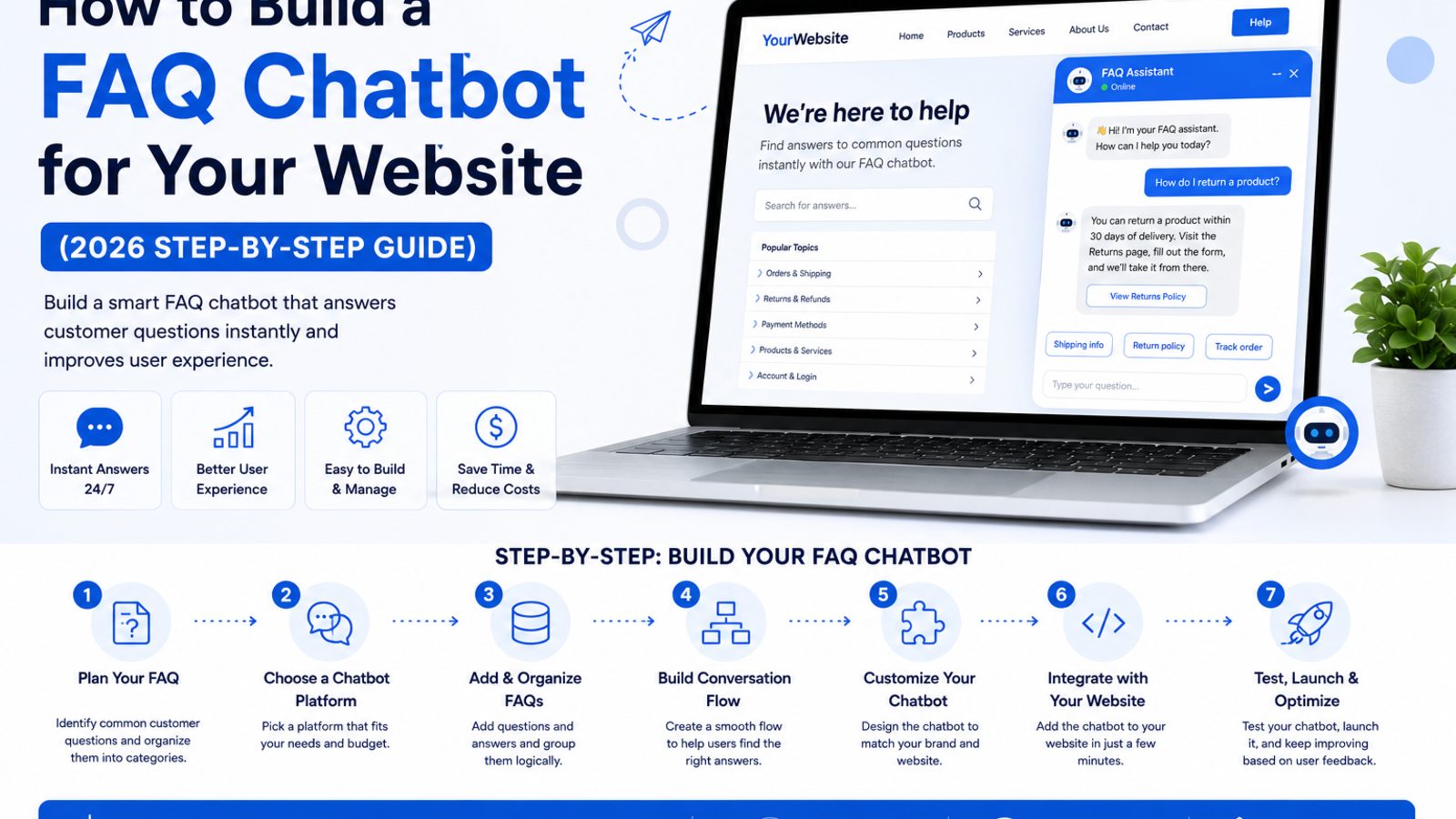
This guide walks you through exactly how to build a FAQ chatbot for your website from scratch, what to put in it, how to train it properly, and how to go live in under an hour using Glanceia — no coding required.
What is a FAQ Chatbot and How is it Different From a FAQ Page?
A FAQ page is passive. It lists questions and answers and waits for visitors to find it, scroll through it, and locate the specific question that matches their situation. Most do not bother.
A FAQ chatbot is active. It sits on every page of your website as a widget, lets visitors type their question in plain language, and returns the most relevant answer immediately — whether that question is worded exactly like your FAQ or not.
The difference in conversion impact is significant. A visitor who gets an instant answer to their question is far more likely to stay on your site, trust your business, and take the next step — whether that is booking a call, making a purchase, or signing up for a free trial.
Beyond just answering questions, a good FAQ chatbot also:
Works 24 hours a day, 7 days a week, with no staff involvement
Captures the name and email of visitors who engage with it
Handles multiple visitors simultaneously without any wait time
Learns from what visitors ask so you can improve your content over time
Reduces the volume of repetitive support emails and calls your team receives
Step 1: Identify the Questions Your Chatbot Needs to Answer
Before building anything, spend 20 minutes collecting the questions your FAQ chatbot should be able to handle. Here is where to find them:
Your existing FAQ page Start here. Every question already on your FAQ page goes straight into your chatbot.
Your support inbox Go through the last 30 to 60 days of customer emails and support messages. The questions that appear most frequently are your highest priority — these are the exact questions real visitors have that your website is not currently answering fast enough.
Your sales conversations Questions that come up repeatedly before a prospect decides to buy are gold for a FAQ chatbot. Pricing objections, comparison questions, feature clarifications — if they slow down your sales process, put them in the chatbot.
Google Search Console If you have Google Search Console set up, look at the queries visitors use to find your site. Questions in that list that your site does not clearly answer on landing are strong candidates for the chatbot.
Your team Ask whoever handles customer calls or emails: what are the five questions you answer every single day? Those are your top five FAQ chatbot entries.
By the end of this exercise you should have somewhere between 20 and 50 questions. That is enough to build a chatbot that handles the majority of what visitors actually ask.
Step 2: Write Clear, Specific Answers
Having the questions is half the job. The answers need to be written properly for a chatbot to deliver them well.
Be specific, not generic A bad FAQ answer: "Our pricing varies depending on your needs. Contact us for a quote." A good FAQ answer: "Our plans start at $9/month for the Starter plan, which includes up to 500 conversations and full AI training on your content. You can see the full breakdown at glanceia.com/pricing."
The specific answer builds trust and moves the visitor forward. The generic answer sends them back to square one.
Keep answers conversational FAQ pages often use formal, document-style language. Chatbot answers land better when they are written the way a helpful colleague would explain something — short sentences, plain language, no unnecessary jargon.
Include the next step Every answer should point the visitor somewhere or offer something: a link to the relevant page, an invitation to book a call, or a prompt to ask a follow-up question. An answer that resolves the question but leaves the visitor with nothing to do next is a missed conversion opportunity.
Group related questions together When building your knowledge base document, organise questions into logical groups — Pricing, Features, Getting Started, Policies, Technical Questions. This makes the document easier to maintain and helps the AI find the right answer for related queries.
Step 3: Build Your FAQ Document
Once your questions and answers are written, consolidate them into a single well-structured document. This is what you will upload to Glanceia to train your chatbot.
Here is a simple format that works well:
PRICING

Q: How much does Glanceia cost?
A: Glanceia has a free plan that you can use without a credit card. Paid plans start at $9/month and include higher conversation volume and advanced features. See the full pricing at glanceia.com/pricing.

Q: Is there a free trial?
A: Yes — the free plan is fully functional with no time limit. You can build, train, and embed your chatbot completely free and only upgrade when you need more volume.

Q: Can I cancel anytime?
A: Yes. There are no long-term contracts. You can cancel your paid plan at any time from your account settings.

GETTING STARTED

Q: Do I need to know how to code?
A: No. Glanceia is built for non-technical users. You can set up, train, and go live without writing a single line of code.

Q: How long does it take to set up?
A: Most users are live within 30 minutes. The setup involves signing up, uploading your content, customising the widget, and pasting one embed script on your website.
Continue this format for every question in every category. The more complete and specific this document is, the better your chatbot will perform.
Step 4: Set Up Your Chatbot in Glanceia
With your FAQ document ready, the technical setup is straightforward.
Create your account Go to Glanceia and sign up for a free account. No credit card required.
Upload your FAQ document Inside your Glanceia dashboard, navigate to the training section and upload your FAQ document. You can upload it as a PDF, paste the text directly, or add it as a URL if your FAQ page is already live. Glanceia reads through the document and trains the AI on your specific questions and answers.
Add supplementary content Beyond the FAQ document itself, also upload any other content that might help the chatbot answer related questions — your about page, your services or product pages, pricing details, and any policies. The chatbot will draw from all of this when answering questions, not just the FAQ document.
Set your welcome message Write an opening message that tells visitors exactly what the chatbot can help with. For a FAQ chatbot, something like this works well:
"Hi! Have a question about our products, pricing, or anything else? Ask me — I know the answers."
"Hello! I can answer questions about our services, plans, and how to get started. What would you like to know?"
"Got a question? I'm here to help — ask me anything about how we work."
Configure lead capture Set the chatbot to ask for the visitor's name and email at an appropriate point in the conversation — usually after answering their initial question and before a follow-up question or CTA. This turns FAQ interactions into leads your team can follow up on.
Step 5: Customise the Widget Appearance
Your chatbot widget should feel like it belongs on your website, not like a third-party tool bolted on as an afterthought.
In Glanceia's dashboard, customise:
Widget color — match your brand's primary color
Chat bubble icon — keep it clean and recognisable
Chatbot name — either your brand name, a product name, or a simple friendly name like "Support" or "Ask Us"
Widget position — bottom right is the industry standard and where visitors instinctively look
Font and text style — keep it consistent with your website's typography
A well-branded widget gets significantly more engagement than a generic one. Visitors are more likely to click a widget that looks like it belongs there.
Step 6: Embed the Chatbot on Your Website
Glanceia generates a single embed script once your chatbot is configured. Copy it and paste it into your website's footer — the closing </body> tag area — so it appears on every page.
Platform-specific guides if you need them:
WordPress: How to add a chatbot to WordPress
Shopify: How to add a chatbot to Shopify
Or the general guide: How to add a chatbot to any website
Step 7: Test Before Going Live
Open your website in a private or incognito browser window and test the chatbot with real questions — the same questions real visitors would ask. Check:
Does it answer common questions accurately and specifically?
Does it handle questions worded differently from how you wrote them in the FAQ?
Does it respond well when asked something it does not know — does it suggest a next step rather than giving a confusing answer?
Is the widget visible and easy to tap on mobile?
Does the lead capture trigger at the right moment?
Fix anything that feels off before going live. First impressions matter — a chatbot that gives a wrong or vague answer to the first question a visitor asks loses that visitor's trust immediately.
What a Good FAQ Chatbot Looks Like in Practice
Here is how a real FAQ chatbot conversation might flow on a SaaS business website:
Visitor: What is the difference between the free and paid plan?
Chatbot: The free plan gives you full access to set up and train your chatbot with no time limit — great for getting started. The paid plan from $9/month adds higher monthly conversation volume, priority support, and advanced lead capture features. You can see a full side-by-side comparison at glanceia.com/pricing — happy to answer anything specific about either plan!
Visitor: Can I train it on a PDF?
Chatbot: Yes! You can upload PDFs, paste FAQ text directly, or link your existing help pages. The chatbot learns from all of it and uses that content to answer visitor questions accurately. Want to know how the training process works?
Visitor: Yes actually
Chatbot: Sure — once you upload your content, Glanceia processes it and the chatbot starts answering questions based on what you provided. You can update the training content anytime and changes go live immediately. Before I go, what is your name and email in case you have more questions later?
That is a complete FAQ interaction — the visitor got three specific answers, was directed to the pricing page, and left their contact details. All in under 2 minutes, without any human involved.
How to Improve Your FAQ Chatbot Over Time
Going live is not the end — it is the beginning of an improvement cycle that makes your chatbot progressively better.
Review unanswered questions weekly Glanceia's dashboard shows you questions the chatbot could not answer. Each one is a gap in your FAQ document. Add the answer and the chatbot improves immediately.
Track the most asked questions The questions that come up most often reveal what your website is not communicating clearly enough. Use this data to improve your website copy and onboarding flow — not just the chatbot.
Update when your business changes New product launch, pricing change, policy update — update your FAQ document in Glanceia at the same time. Outdated chatbot answers erode trust faster than no chatbot at all.
A/B test your welcome message Try different opening messages over a few weeks and see which one gets more visitors to actually engage with the chatbot. Small changes in wording can meaningfully impact engagement rates.
Common Mistakes to Avoid
Writing vague answers that dodge the question If your FAQ document is full of "it depends" and "contact us for more information," your chatbot will give those same non-answers. Visitors will stop using it quickly.
Only uploading the FAQ document and nothing else The more context the chatbot has — your services page, pricing page, about page, policies — the better it handles questions that fall slightly outside the FAQ. Upload everything relevant.
Not testing on mobile A large share of website traffic is mobile. Test your chatbot on a phone before going live. The widget should be easy to tap, the text should be readable, and the conversation should flow smoothly on a small screen.
Ignoring the conversation logs Your chatbot's conversation history is the most direct feedback your business can get on what visitors want to know. Review it regularly and treat it as a product improvement tool, not just a support log.
FAQ About Building a FAQ Chatbot
How many questions do I need before the chatbot is useful? A minimum of 20 well-answered questions covering your most common topics gives a good starting point. 40 to 60 questions covering multiple categories gives a chatbot that handles the vast majority of real visitor queries without escalation.
Does the chatbot only answer the exact questions I wrote? No. Because Glanceia uses AI trained on your content, it can understand and answer questions worded differently from how you wrote them in the FAQ — including follow-up questions, rephrased queries, and combinations of topics.
What if a visitor asks something the chatbot cannot answer? The chatbot should acknowledge it does not have that specific answer and provide a clear next step — your support email, a link to book a call, or your WhatsApp number. Never leave a visitor with a dead end.
Do I need a separate FAQ page on my website if I have a chatbot? Keep both. The FAQ page helps with SEO — Google indexes its content and can rank it in search results. The chatbot handles the conversion side — giving visitors instant answers while they are on your site. They serve different purposes and work better together.
Can I build a FAQ chatbot for free? Yes. Glanceia's free plan lets you build, train, and embed a fully functional FAQ chatbot on your website without a credit card.
Final Thoughts
A FAQ chatbot is one of the highest-return things you can add to a business website. It takes the questions your visitors are already asking — the ones that are currently going unanswered or waiting in an inbox — and answers them instantly, on every page, at every hour, for every visitor.
The setup takes less time than writing a new FAQ page. The impact shows up from day one.
Ready to build your FAQ chatbot? Try Glanceia free →
Published by Laxman- Team Glanceia